How to Export All Jira Issues in a Project
Export all Jira issues in one project to Excel or CSV. Choose current, all, or filter fields, handle 10,000+ issues, and avoid mistaking an export for a backup.
Updated
To export all Jira issues in a project, run a project-wide search and export the results as CSV. Excel can open that file, but Jira is still giving you a CSV, not a formatted .xlsx workbook.
Use this JQL as the clean starting point:
project = ABC ORDER BY key ASCReplace ABC with your project key. Jira will return the work items you are allowed to see in that project. Issue security and project permissions still apply, so two people can run the same query and get different totals.
Export all Jira issues from a project
In Jira Cloud:
- Open the work item search. Depending on your Jira navigation, this may be Filters > All work items or the List inside a project.
- Switch to advanced search if you need JQL.
- Run
project = ABC ORDER BY key ASC. - Check the result count and scan the first few rows. A suspiciously small total usually means the project key, permissions, or an old filter is narrowing the search.
- Select the More actions menu, then Export.
- Choose Export Excel CSV (current fields), Export Excel CSV (all fields), or Export Excel CSV (filter fields) when a saved filter provides that option.
- Save the CSV and open it in Excel or another spreadsheet tool.
Atlassian’s current Jira Cloud instructions use those three CSV choices. Jira’s labels have changed over time, so older guides may show a different menu or say “issues” where the current interface says “work items.”
Current fields, all fields, or filter fields?
The shortest useful export is usually better than the largest possible export.
| Jira option | What it uses | Best for |
|---|---|---|
| Current fields | The columns in your current search-results view | A clean one-off spreadsheet with known columns |
| All fields | Every field Jira includes for the matching work items | Discovery, migration preparation, or finding a field you have not configured as a column |
| Filter fields | The column configuration saved with the filter | A repeatable team-owned column layout |
“All fields” often produces a wide file. Jira sites collect custom fields the way kitchen drawers collect mystery cables. Exporting everything can be useful once, but it is a poor default for a file someone must read every week.
If a saved filter exports the wrong columns, check the filter’s column configuration. Atlassian explains that filter-specific columns override a user’s default columns when that filter is exported.
What “all Jira issues” includes
The export includes every work item matched by the search that your account may view. It can include system fields, custom fields, comments when the relevant export/field choice includes them, and attachment metadata or links.
It does not mean:
- Every project on the Jira site.
- Work items hidden from you by project or issue security.
- A reliable record of every historical value a field has held.
- Physical attachment files downloaded in bulk.
- Project configuration such as workflows, schemes, permissions, or automation rules.
- App-owned data stored outside normal Jira fields.
This distinction prevents a common bad day: somebody asks for a backup, receives a spreadsheet, and discovers during a restore that a spreadsheet is not a backup.
For recovery or migration, use Jira’s administrative backup process. Atlassian’s Jira Cloud backup documentation describes what the backup contains and what it leaves out. Attachments can be included in that backup, but Jira limits how frequently attachment-inclusive backups can be created.
Check the export before sending it anywhere
Open the CSV and make five checks:
- Compare its work-item count with the Jira search total.
- Check that the first and last keys fall inside the expected project.
- Confirm important fields such as status, assignee, created date, and any reporting fields are present.
- Look at a few blank cells in Jira. A blank can be correct, or it can mean the field was not available for that work-item type.
- Treat the file as untrusted input before opening or sharing it.
Atlassian warns that CSV content can be interpreted as spreadsheet formulas or macros when it is opened in Excel or uploaded to Google Sheets. If users can enter text into Jira fields, review your spreadsheet security controls before distributing the file.
What if the project has more than 10,000 Jira issues?
Jira Cloud’s search-result CSV export supports up to 10,000 work items per asynchronous export. That limit belongs to the export you run from the work item search. A script calling the REST API is a different path with different limits, so “how many can I export?” depends on which one you use. If the project search is larger, split it into non-overlapping JQL ranges and merge the files.
The batching steps belong in one place, so use our maintained guide to export more than 10,000 Jira issues to Excel. It covers safe date ranges, duplicate checks, Power Query merging, and which limit applies to which export method, without turning this project-export guide into the same article wearing a different hat.
Use the REST API when a script owns the workflow
Jira’s REST API can search with JQL, request a selected field list, and page through the results. That is a reasonable fit when an engineering team already owns authentication, schema handling, retries, and file generation.
The 10,000 ceiling does not apply here. The API pages rather than caps, at up to 5,000 work items per page and fewer when you request many fields. It also no longer returns a total, so a script cannot read the result count up front and loop to it. Plan around page size and run time instead of a single number.
The current enhanced search endpoint accepts JQL and an explicit fields array. It returns only work items the authenticated user can browse. See Atlassian’s Jira Cloud issue search API before copying an old pagination example; the API has changed and older endpoints have been retired.
Native Jira export or an export app?
Use native Jira for a one-off project export when CSV is acceptable and current field values are enough.
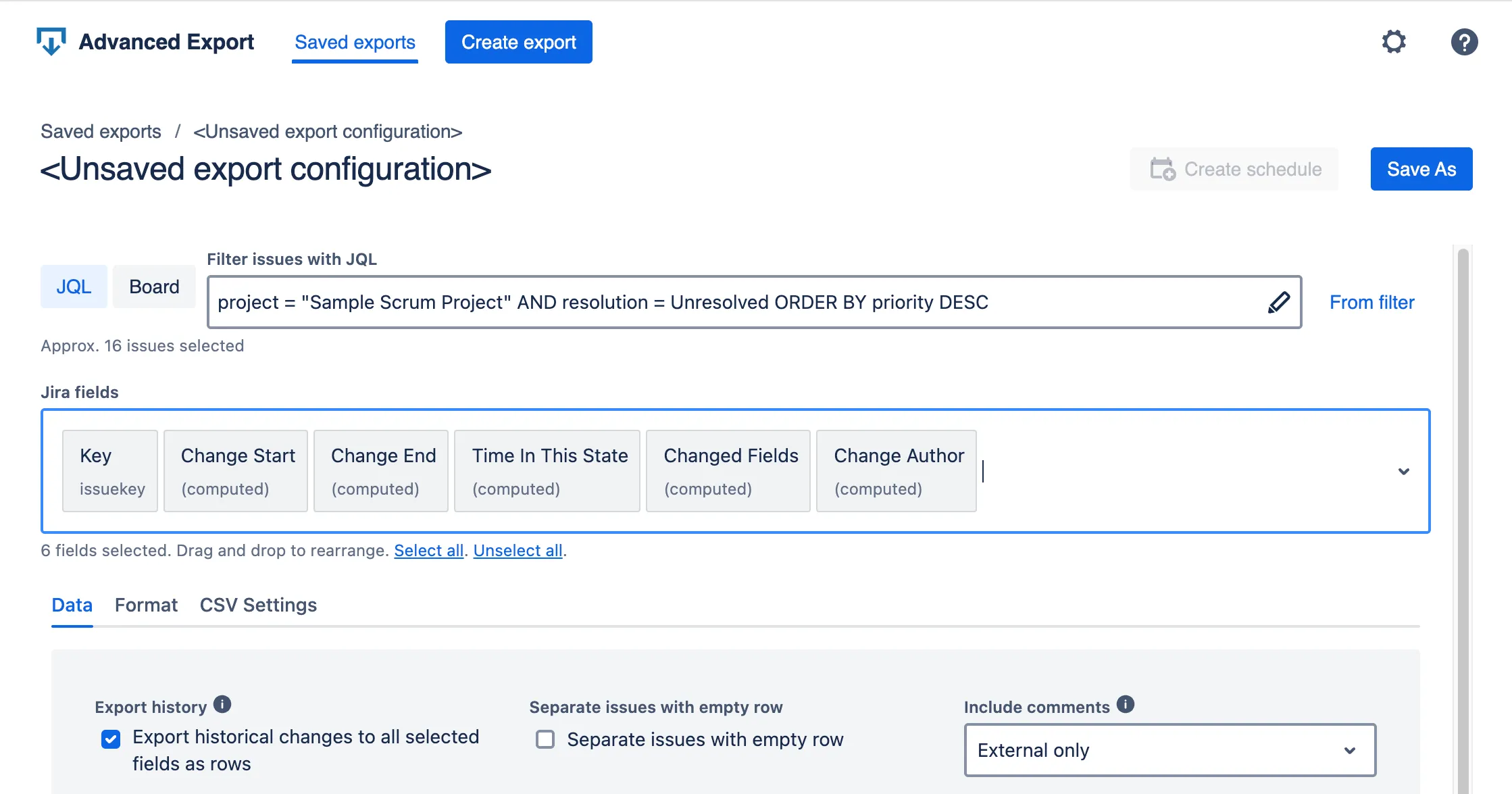
An export app becomes useful when the file is part of a recurring process. Advanced Export saves a configuration built from JQL, a Jira filter, a board, or a sprint. You can preview selected standard and custom fields, add change history when required, generate CSV, XLSX, or JSON, and schedule a delivery route.
| Requirement | Better starting point |
|---|---|
| One project, one-time CSV | Native Jira export |
| Current columns already configured | Native current-fields export |
| Full Jira site recovery or migration | Jira Cloud backup |
| Repeatable selected fields and formatting | Advanced Export |
| Field change history in separate rows | Advanced Export |
| Scheduled email, SFTP, webhook, or API retrieval | Advanced Export |
Its interactive exports handle up to 100,000 work items rather than Jira’s 10,000, though a very large file with full history and many fields can still exhaust browser memory. Reducing the work items, selecting fewer fields, or scheduling the export server-side are the ways round that.
Advanced Export does not turn a data extract into a Jira site backup. It solves a different job: repeatable, structured files for reporting and downstream use.
Make the project export repeatable
If this is the spreadsheet you rebuild every week, see how Advanced Export works. You can keep the JQL and field selection, preview the output, and choose an immediate browser export or a scheduled delivery.
Frequently asked questions
- How do I export every Jira issue in one project?
- Open Jira's work item search, run a project query such as project = ABC, then use More actions, Export, and choose an Excel CSV option. The file contains the work items matched by the search that you have permission to view.
- Should I choose current fields or all fields?
- Choose current fields when you want the columns shown in the search results. Choose all fields when you need a broad one-off extract and are prepared to remove unwanted columns. A saved filter can also export its configured filter fields.
- Does a Jira CSV export include attachment files?
- No. Jira Cloud's search-result CSV can include attachment metadata or URLs, but it does not bulk-download the physical files. A Jira Cloud backup can include attachments when that option is selected.
- Is exporting a project the same as backing up Jira?
- No. A project CSV is a table of matching work items and fields. A site backup is an administrative export for recovery or migration and can include configuration, users, boards, sprints, and attachment files.
Recommended app
Advanced Export for Jira
Put this guide into practice with Advanced Export, built by Advanced Insights and available on the Atlassian Marketplace.
Keep reading
How to Export Jira Custom Fields to Excel or CSV
Export Jira issues and custom fields to Excel or CSV, fix missing columns, and test complex values before they damage a report or downstream dataset.
ExportHow to Automate Jira Exports to Excel or CSV
Automate Jira exports to Excel or CSV by choosing the right method for file generation, delivery, workbook refresh, permissions, and failures.