How to Automate Jira Exports to Excel or CSV
Automate Jira exports to Excel or CSV by choosing the right method for file generation, delivery, workbook refresh, permissions, and failures.
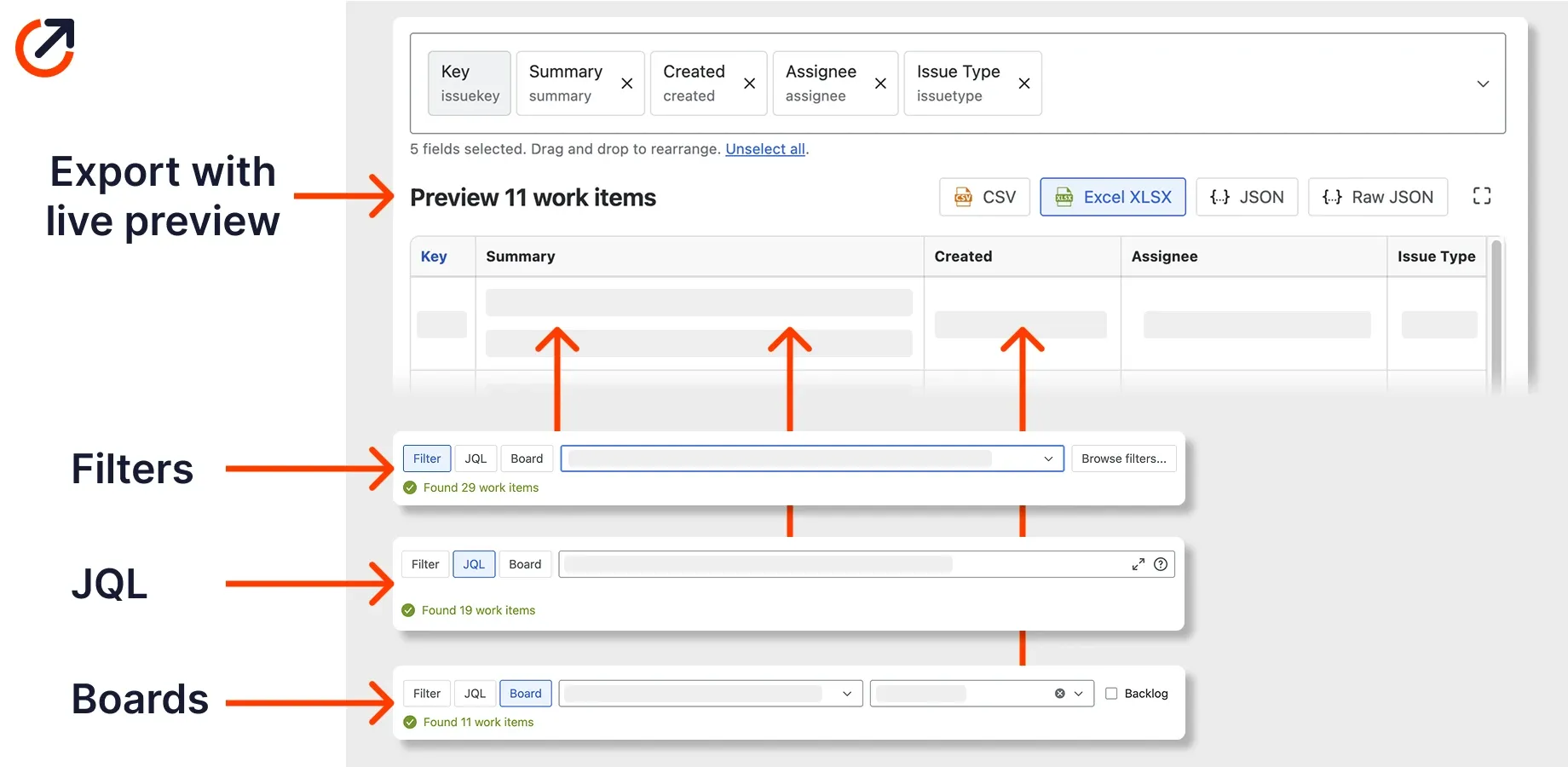
An automatic Jira export has three separate jobs: generate the data, deliver it somewhere predictable, and refresh the workbook that uses it. A setup can automate one job while leaving the other two manual.
Start by deciding which result you need:
- A fresh file waiting every Monday morning.
- An Excel workbook that refreshes when someone opens it.
- A dataset that updates without anyone opening Excel.
- A file sent to another system rather than a person.
Those are different workflows. Naming the result first prevents a cheerful-looking schedule from becoming a weekly hunt for the latest attachment.
What “automatic” means for a Jira export
Use these terms consistently:
| Job | What happens | Typical owner |
|---|---|---|
| Generation | Jira data is selected and written to CSV, XLSX, or JSON | Jira export, script, or app |
| Delivery | The file reaches email, a folder, SFTP, a webhook, or another destination | Scheduler or integration |
| Refresh | Excel imports the newest data and reruns transformations | Workbook or data platform |
A manually downloaded CSV with a good Power Query setup automates refresh, but not generation. A scheduled XLSX email automates generation and delivery, but somebody may still have to replace a workbook tab by hand.
Choose the simplest way to export Jira issues on a schedule
| Method | Good fit | You still own |
|---|---|---|
| Native Jira export | Occasional file, one person, current values | Running and saving each export |
| Power Query over a folder | Repeated files with the same columns | Putting a fresh file in the folder |
| Jira REST API | Engineering-owned data pipeline | Authentication, paging, schema, retries, and file creation |
| Scheduled export app | Recurring Jira-owned configuration and delivery | Schedule, permissions, recipients, monitoring, and downstream refresh |
The best method is the least complicated one that meets the frequency, format, history, and destination requirements. A monthly spreadsheet for one analyst does not need the same machinery as a daily feed into finance or a data warehouse.
Keep native Jira as the one-off baseline
Jira Cloud can export search results as Export Excel CSV (current fields), all fields, or filter fields. It can also open results in Microsoft Excel from the search interface. Atlassian documents the current export options.
Use native export when running the file is genuinely occasional. Save the JQL or filter, configure the columns, and document where the file goes. If the search contains more than Jira’s native export supports, follow the separate guide to export more than 10,000 Jira issues.
For a project-wide one-off extract, see the guide to export all Jira issues in a project.
Native export stops being a good answer when somebody must remember to run it at the right time, use the right filter, choose the right columns, rename the file, and put it in the right place every week.
Let Power Query refresh a folder of exports
Power Query can combine files from a folder when they have the same format and structure. This works well when a process already delivers regular CSV files to a controlled folder or SharePoint location.
In Excel:
- Put representative export files in a dedicated folder.
- Choose Data, Get Data, From File, then From Folder.
- Select Combine & Transform Data.
- Filter out unrelated files before combining them.
- Set data types deliberately instead of accepting every automatic guess.
- Load the result into a table or data model.
- Replace the sample with a new export and run Refresh All.
Microsoft’s folder connector guidance notes that files in the folder and its subfolders are processed using the same transformation. Keep the folder clean. A forgotten test file with different columns can break or contaminate the refresh.
Power Query does not make Jira produce the next file. Pair it with a documented manual export, an API process, or a scheduler that delivers consistently named files.
Use the Jira REST API when engineering owns the pipeline
The Jira Cloud REST API can run JQL and request an explicit field set. It is a good fit when a team already owns secure authentication, pagination, retries, logging, schema conversion, and storage.
Do not paste a long-lived Jira token into a workbook and pass the workbook around. Decide where credentials live, which account or app identity runs the query, and how access is revoked. Request only the fields the downstream process needs.
The current Jira Cloud issue-search API includes enhanced JQL search operations. Read the current endpoint and paging behavior before copying an old script. An API response is JSON, so the pipeline must still flatten or model complex fields before Excel can use them.
Schedule the Jira file when delivery is the missing piece
Advanced Export’s scheduled-report documentation describes server-side schedules that can run daily, weekly, monthly, or yearly without leaving a browser open. A schedule is attached to an export configuration owned by the user.
The documented setup is:
- Create and save an export configuration from JQL, a Jira filter, a board, or a sprint.
- Select the fields and choose CSV, XLSX, or JSON.
- Preview representative work items and complex fields.
- Set the start date, recurrence, hour, and timezone.
- Choose email attachment, download link, SFTP upload, webhook POST, or API retrieval.
- Confirm which Jira permissions generate the report.
- Run it once immediately and inspect the delivered file before relying on the schedule.
The current documentation says schedules use the configuration owner’s permissions by default. Administrators can allow generation with the Jira add-on role, which may have broader access than the owner. Treat that as a data-access decision, not a convenience toggle.
Scheduling is also the answer when an interactive export is too big to finish comfortably. The documentation states there is no cap on how many work items or fields you can export, but that interactive reports are generated in the browser, so a large export with full history and many fields can take a long time. The documented remedies are to narrow the JQL or to schedule the export so it runs server-side instead.
The documentation also says a schedule pauses automatically after five consecutive failures in a row. Check the delivery result on the first few runs rather than assuming a silent schedule is a working one.
See the Advanced Export product page for the broader workflow and current positioning.
Make the Excel refresh dependable
Automation is useful only when a stale or malformed file is obvious.
Keep these controls with the workbook or pipeline:
- Expected file name or folder pattern.
- Generation timestamp and source timezone.
- Expected minimum and maximum row counts.
- Required columns and data types.
- A duplicate key check.
- A record of the Jira filter or JQL used.
- The identity and permissions used for generation.
- A visible last-successful-refresh timestamp.
- A named owner for failures.
Schema drift is the quiet failure. A renamed custom field, changed date format, new multi-select value, or missing column can refresh without producing the report you expected. Test representative awkward values before the process becomes unattended.
Test a failed export before trusting the schedule
Run the workflow with one deliberate problem:
- Use a destination or test folder where a failed delivery is safe.
- Remove access or introduce a harmless schema mismatch.
- Confirm that the schedule, script, or workbook surfaces the failure.
- Confirm who receives the alert and what they should do.
- Restore the configuration and verify the next successful run.
Then check the normal result:
- The Jira result count matches the exported row logic.
- The file was generated in the intended timezone.
- The destination received one current file.
- Excel imported the expected columns and types.
- Blank, multi-value, and custom fields still behave as designed.
- The workbook displays its last successful refresh.
Build the schedule around a verified export
Start with one export that is small enough to inspect. Once its fields, permissions, format, and destination are correct, see how Advanced Export handles saved configurations and scheduled delivery.
Frequently asked questions
- Can Jira automatically export issues to Excel?
- Jira Cloud provides manual search-result exports and can open results in Microsoft Excel. For unattended recurring files, use an owned API process or a scheduling app. Excel can then refresh from a stable file, folder, or supported data endpoint.
- Is a scheduled Jira export the same as an automatically refreshed workbook?
- No. A schedule generates or delivers a new file. Excel refresh is a separate step that imports the latest file or data source into the workbook. Decide who owns each step and what happens when either one fails.
- Should an automated Jira export use CSV or XLSX?
- CSV is usually easier for scripts, folder-based Power Query workflows, and stable tabular feeds. XLSX is useful when recipients need an Excel workbook directly. JSON is often better when code needs nested or typed data.
- What should I monitor in a scheduled Jira export?
- Monitor the run time, result count, expected columns, delivery result, file freshness, duplicates, schema changes, and the permissions used to generate the file. Test a failed run as well as a successful one.
Recommended app
Advanced Export for Jira
Put this guide into practice with Advanced Export, built by Advanced Insights and available on the Atlassian Marketplace.
Keep reading
How to Export All Jira Issues in a Project
Export all Jira issues in one project to Excel or CSV. Choose current, all, or filter fields, handle 10,000+ issues, and avoid mistaking an export for a backup.
ExportHow to Export More Than 10,000 Jira Issues to Excel
Jira Cloud caps CSV exports at 10,000 issues. Follow tested JQL batching steps, merge files safely in Excel, or automate recurring exports.