How to Export More Than 10,000 Jira Issues to Excel
Jira Cloud caps CSV exports at 10,000 issues. Follow tested JQL batching steps, merge files safely in Excel, or automate recurring exports.
Updated
Jira Cloud’s Issue Navigator exports up to 10,000 work items in one asynchronous CSV job. That ceiling belongs to the UI export. The REST API pages instead of capping, and Jira Data Center defaults to 1,000. For a larger UI export, split the search into non-overlapping JQL batches and merge the files, or use an export app for XLSX output, change history, and scheduled delivery.
Jira Cloud now supports CSV exports of up to 10,000 work items from the Issue Navigator. The old 1,000-row ceiling still appears in outdated articles and some Jira Data Center guidance, but it is no longer the native Jira Cloud limit.
For a one-off export under 10,000 rows, use Jira’s built-in CSV export. Above 10,000, Atlassian’s current workaround is to split the search into non-overlapping JQL batches, export each batch, and merge the files.
An export app makes sense when you need a proper XLSX workbook, a saved field setup, issue change history, or scheduled delivery. It can also spare you from repeating the batch-and-merge routine.
Which export limit applies to you?
“What’s the limit?” has more than one answer, because Jira has more than one way of getting data out.
| How you are exporting | Limit |
|---|---|
| Issue Navigator, Export Excel CSV (Jira Cloud) | 10,000 work items per export job |
| Issue Navigator export (Jira Data Center) | 1,000 by default, and an admin can raise it |
| Jira REST API from a script | No total ceiling. You page through results, up to 5,000 per page |
| Jira Cloud for Sheets | Around 10,000 per query, depending on the data |
| Site backup (admin) | A different job entirely, and not a spreadsheet |
| Advanced Export | 100,000 in the browser, and scheduled exports run server-side |
Most people asking about the limit mean the first row. They clicked Export, and Jira stopped short. That is the 10,000 ceiling, and the rest of this guide deals with it.
When a script does the extracting, plan around page size, pagination, and run time instead.
Atlassian adds one warning that is easy to miss. Do not mix the two. Running some batches through the UI and others through the API can leave you with duplicate or missing work items, because the two paths order and page results differently.
What Jira means by “Excel CSV”
Jira’s native export option is called Export Excel CSV. The wording is doing a little dance.
Jira gives you a plain CSV file that Microsoft Excel can open. The file has one table and no workbook features such as multiple sheets, preserved data types, formulas, styling, or pivots.
For many teams, CSV is enough. Excel opens it, you can filter it, and nobody has to think too hard.
The distinction matters when:
- Dates come through in awkward formats.
- Multi-value fields expand in weird ways.
- You want separate sheets.
- You need formulas, formatting, or stable field types.
- You are sending the file to someone who will absolutely break it and then ask you why you broke it.
This guide covers Jira Cloud. As the table above shows, Jira Data Center still documents a default 1,000-item CSV limit, with batching, REST pagination, or an admin configuration change as the workarounds. Data Center users should confirm their site’s limit with an administrator.
How to export Jira issues to Excel CSV
For a standard Jira Cloud export:
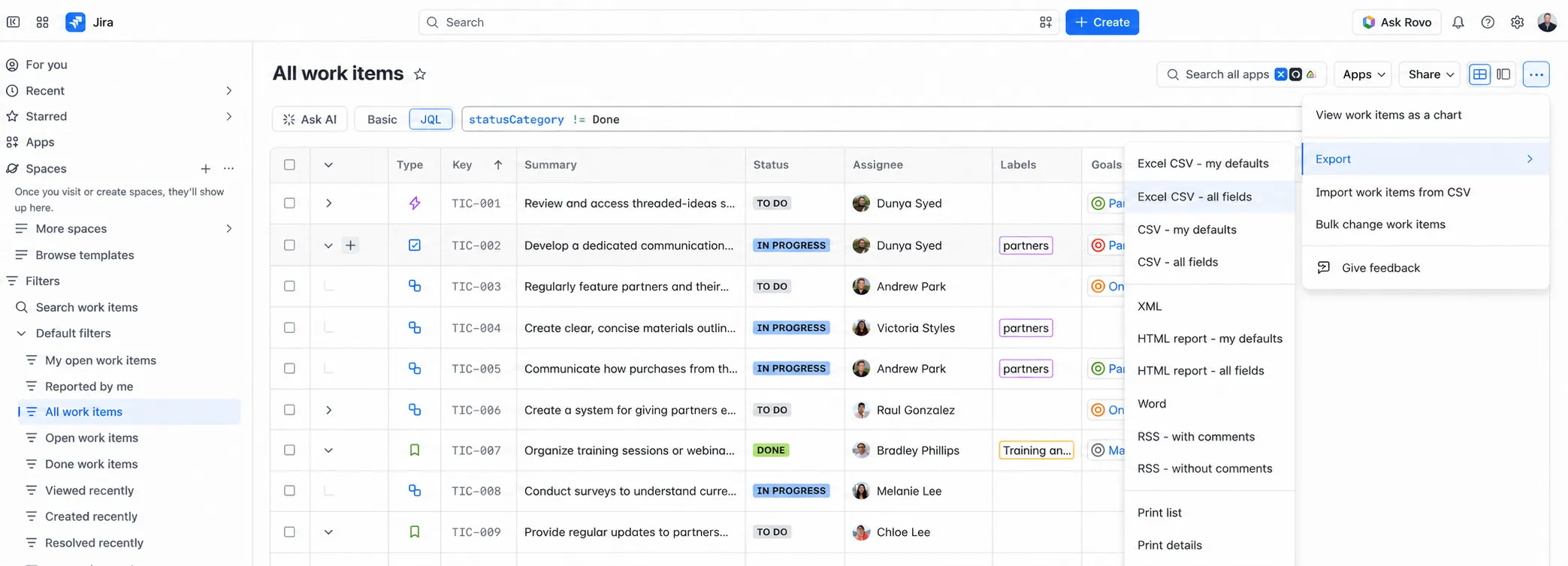
- Go to Filters > All work items.
- Build or open the JQL search you want to export.
- Check the result count.
- Select the More actions menu (the … in the top right).
- Choose Export.
- Pick one of the Excel CSV options:
- Excel CSV (all fields)
- Excel CSV (current fields)
- Excel CSV (filter fields), if you are using a saved filter with configured columns
- Open the downloaded CSV in Excel.
For a one-time export under 10,000 work items, stop here. Do not over-engineer a sandwich.
Pick your fields carefully. Atlassian recommends exporting only the fields you need because “all fields” exports take longer and produce larger files. If your Jira site has years of custom fields, comments, links, and historical odds-and-ends, exporting everything can make Excel stare into the middle distance.
What if you have more than 10,000 Jira issues?
Split the export into batches.
Create smaller JQL searches that each return fewer than 10,000 work items. Export each search, then merge the CSV files in Excel, Power Query, Google Sheets, Python, or whatever tool you use when a spreadsheet becomes furniture.
Each batch must cover a separate slice of the data. Overlapping batches create duplicates; gaps leave work items behind.
This pair of queries overlaps:
project = ABC AND status = Done
project = ABC AND status in (Done, Closed)
The second query includes every result from the first one, which sends you straight to duplicate city.
Non-overlapping date ranges are safer:
project = ABC AND created >= "2026-01-01" AND created < "2026-04-01" ORDER BY created ASC
project = ABC AND created >= "2026-04-01" AND created < "2026-07-01" ORDER BY created ASC
project = ABC AND created >= "2026-07-01" AND created < "2026-10-01" ORDER BY created ASC
project = ABC AND created >= "2026-10-01" AND created < "2027-01-01" ORDER BY created ASC
Each date range is separate. No issue should appear in two files.
How to batch a large Jira export
1. Start with the full query
For example:
project = ABC ORDER BY created ASCRun it in Jira’s Issue Navigator and note the total number of results.
If it returns 9,400 work items, export once and enjoy a tiny victory.
If it is 47,000, keep going.
2. Choose a field to split by
Good batching fields are stable and easy to reason about:
createdupdatedresolvedprojectissuetypestatus
Date ranges are usually the least annoying option because they are naturally ordered and easy to make non-overlapping.
3. Create batches under 10,000 issues
Try a date range:
project = ABC AND created >= "2026-01-01" AND created < "2026-04-01" ORDER BY created ASCIf Jira says that returns 6,200 issues, great.
If it returns 14,500, split it again:
project = ABC AND created >= "2026-01-01" AND created < "2026-02-15" ORDER BY created ASC
project = ABC AND created >= "2026-02-15" AND created < "2026-04-01" ORDER BY created ASC
Patience and non-overlapping ranges matter more than cleverness here.
4. Export each batch
For every batch:
- Run the JQL.
- Confirm the count is under 10,000.
- Export using Export Excel CSV.
- Name the file clearly.
Use boring filenames. Future-you deserves mercy:
jira-abc-created-2026-01-01-to-2026-02-15.csv
jira-abc-created-2026-02-15-to-2026-04-01.csv
5. Merge the CSV files
Make sure every batch has the same columns, then combine the files in Excel with Power Query:
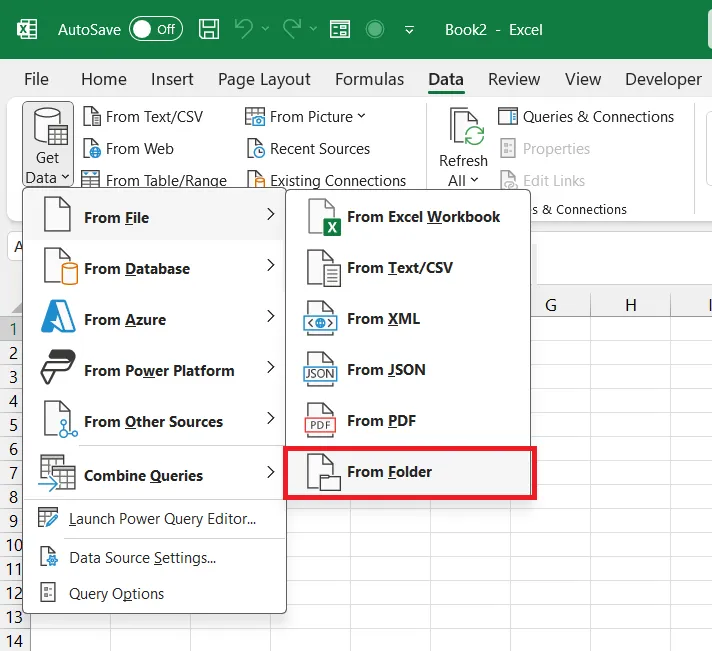
- Put all batch CSV files in one folder.
- In Excel, go to Data > Get Data > From File > From Folder.
- Select the folder.
- Combine and load the files.
- Check the row count against your original Jira result count.
Do not skip the final count check. It is the spreadsheet equivalent of checking that you still have your passport before leaving the airport.
What about the old 1,000-issue URL trick?
Older articles may tell you to edit the export URL with tempMax=1000 and pager/start=1000.
Atlassian deprecated that workaround in March 2026. Its current guidance is to split large searches into JQL batches under 10,000 work items and merge the files.
The URL method explains how older export processes worked. JQL batching is the supported starting point now.
Opening Jira data in Google Sheets or Microsoft Excel
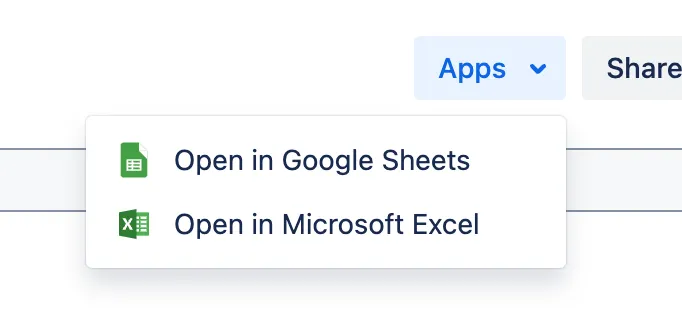
Jira Cloud can open search results in Google Sheets or Microsoft Excel from the Apps menu above the results. Atlassian says Jira Cloud for Sheets should handle queries of up to 10,000 work items, although the amount and complexity of the data can affect it.
For a larger result set, the =JIRA() function can paginate the data into separate ranges. One formula can return the first 10,000 rows, and another can start at row 10,000 for the next batch. Sort the JQL so rows do not shift unpredictably between requests.
This works well when Google Sheets is the final destination. If Finance expects an Excel file every Monday morning without your help, you are still running the process by hand.
Using the Jira REST API
The Jira REST API supports paginated searches. A script can fetch each page until it has the full dataset, then convert the JSON response into CSV or XLSX. This gives technical teams more control over fields, transformations, and delivery.
The 10,000 ceiling does not apply here, which is why the answer changes the moment a script is involved. Atlassian’s enhanced search endpoint returns up to 5,000 work items per page, and fewer when you request a lot of fields. Ask for id or key alone and you get the most rows per request.
Check the current documentation before reusing an old example. Jira Cloud retired the previous /rest/api/3/search endpoint, which now returns 410 Gone. Its replacement pages with a nextPageToken cursor rather than startAt, and it no longer returns a total, so a script cannot read the result count and loop to it. An approximate total is now a separate call.
It also creates work:
- You need authentication and API tokens.
- You need to handle cursor pagination, and work out when you have reached the end without a total to check against.
- You need to choose fields and normalize the output.
- You need to turn JSON into CSV or XLSX.
- You need to maintain the script when Atlassian changes API behavior.
That can be reasonable for an engineering team. It is a bit much for “I need this spreadsheet for the quarterly review.”
Advanced Export or a script on the REST API?
Both paths end in a file. They differ in who maintains the plumbing.
| What you need | Advanced Export | Your own script |
|---|---|---|
| Change history | Built in. Field-level history with timestamps, written straight into CSV, XLSX, or JSON. | Query /rest/api/3/issue/{key}/changelog per work item, then paginate and stitch the results together yourself. |
| Delivery and scheduling | Built-in scheduler with SFTP, email attachment, download link, webhook, and API retrieval. | You host the schedule, on cron, Lambda, or GitHub Actions, and write the delivery code. |
| Custom fields and Assets | Resolves Jira fields, custom fields, and Jira Service Management Assets into readable columns. | The API returns raw ids such as customfield_10015. Your script fetches the field metadata and maps them. |
| Who can run it | Anyone with access. Build the filter, preview the output, and set the schedule in the browser. | Whoever owns the code. A new field or a new recipient means a code change. |
| Where the data goes | Processed within Atlassian’s app infrastructure. | Runs inside your own cloud or network, which is the stronger answer when that matters. |
| Rate limits | Scheduled exports run server-side, so they are not bound by a browser session or the 10,000 UI ceiling. | You handle 429 Too Many Requests yourself, with backoff and batching. |
A script wins when you already have engineers, somewhere to run it, and a reason to keep the data inside your own boundary. The app wins when the export is a recurring reporting job and nobody wants to own a codebase for it.
When Jira’s native export is enough
Use Jira’s built-in export for a one-off job under 10,000 work items when CSV is acceptable. It suits exports that do not need issue history, scheduled delivery, or a saved field setup. You will still choose the fields and clean up the file yourself.
For a simple job, use the simple tool and move on.
When an export app earns its keep
The row count tells only part of the story. A 3,000-item export becomes a chore when you rebuild it every Friday, reselect the same fields, tidy the dates, and send it to three people. An export app can help when you need:
- A saved export configuration you can run again.
- A live preview before downloading the file.
- Real
.xlsxoutput instead of CSV. - More predictable dates, numbers, and field formatting.
- The same columns in the same order every time.
- Issue change history included in the export.
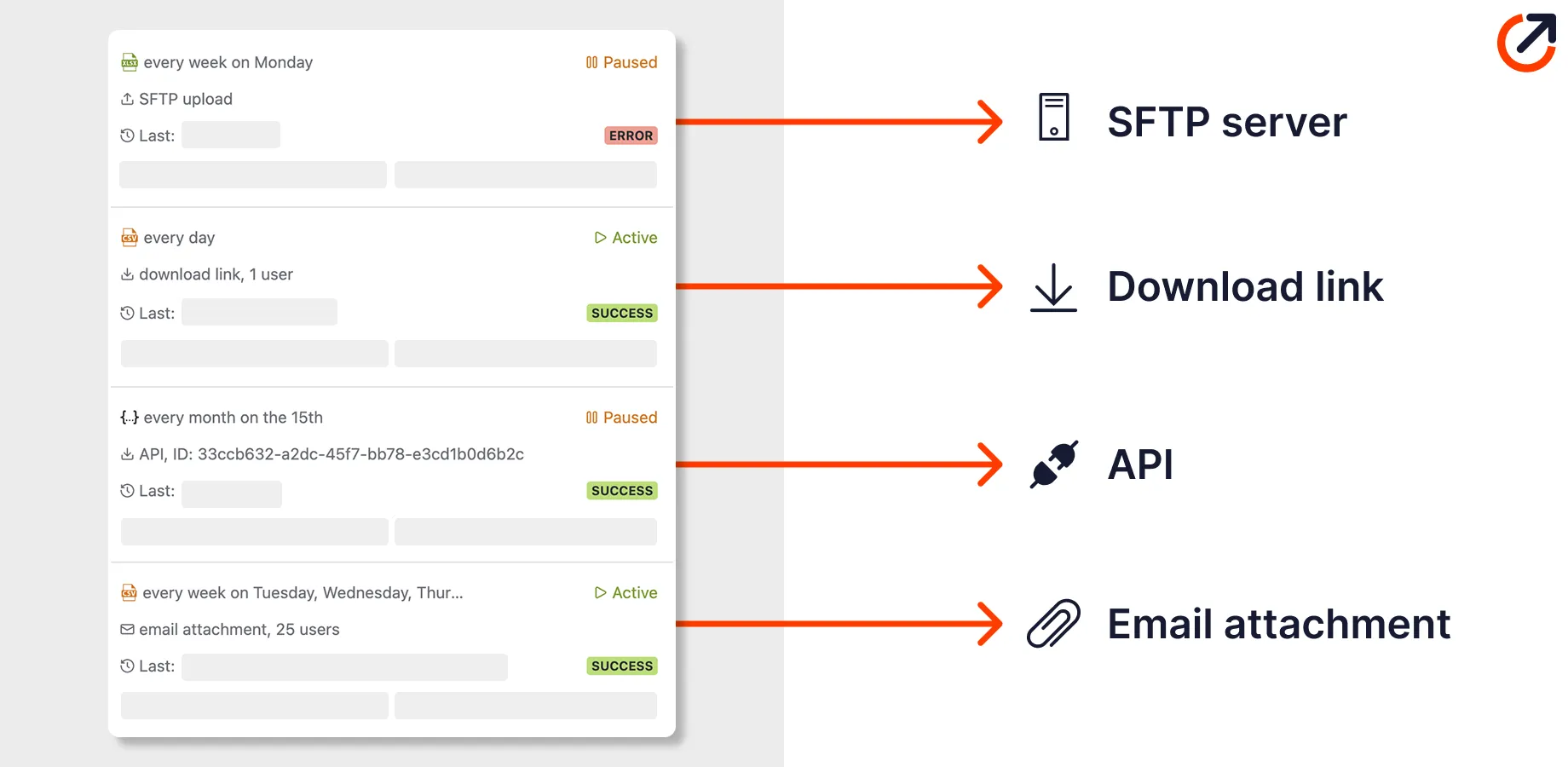
- Scheduled delivery by email, SFTP, API, or webhook.
- Less “wait, which fields did I export last time?” energy.
Use native Jira for quick manual CSV exports. Consider an app once the export becomes a recurring workflow or starts requiring several manual steps.
Quick decision guide
| Situation | Best option |
|---|---|
| Under 10,000 issues, one-time CSV | Native Jira Excel CSV export |
| Under 10,000 issues, recurring or polished XLSX export | Advanced Jira Export |
| Over 10,000 issues, one-time export | Split with JQL batches and merge CSV files |
| Google Sheets is the destination | Jira Cloud for Sheets or =JIRA() pagination |
| Technical team needs raw data | Jira REST API pagination |
| Recurring Excel/CSV/JSON export | Advanced Jira Export |
| Need issue change history in rows | Export app |
| Need scheduled email, SFTP, API, or webhook delivery | Export app |
How Advanced Export handles large Jira exports
Advanced Export is built for the point where Jira’s native export starts to feel like arts and crafts.
Instead of manually batching CSV files, you can configure an export from a filter, JQL query, or board, choose the fields you need, preview the result, and export to XLSX, CSV, or JSON. It also supports complete change history, which native Jira exports do not give you as a tidy spreadsheet.
Interactive exports run in the browser and handle up to 100,000 work items, so the ceiling moves rather than disappearing. Very large files with full change history and many fields can still exhaust browser memory and fail. When that happens, narrow the work items, export fewer fields, or move the job to a scheduled export, which runs server-side instead.
The biggest difference is automation:
- Send scheduled exports by email.
- Upload files to SFTP.
- Share a download link.
- Deliver through an API or webhook.
- Include the same fields every time.
- Stop rebuilding the same spreadsheet with your actual human hands.
Teams that need one plain CSV under 10,000 work items can use Jira and be done.
If your Jira export is part of a recurring reporting workflow, Advanced Export removes the boring parts: batching, merging, formatting, remembering, and quietly resenting the whole operation.
Frequently asked questions
- Can Jira export more than 1,000 issues?
- Yes. Jira Cloud can export up to 10,000 work items using the asynchronous CSV export from the Issue Navigator. The old 1,000-row limit still appears in older articles and some Jira Data Center guidance, but it is no longer the Jira Cloud ceiling.
- Can Jira export more than 10,000 issues?
- A standard Issue Navigator CSV export stops at 10,000 work items. For a larger Jira export, split the results into JQL batches under 10,000, export each batch, and merge the files.
- Does the 10,000 limit apply to the Jira REST API?
- No. The 10,000 ceiling applies to the CSV and Excel export in the Jira Cloud Issue Navigator. A script using the REST API pages through results instead, up to 5,000 work items per page, and fewer when many fields are requested. Avoid mixing UI exports and API exports in one job, because it can produce duplicate or missing work items.
- Does Jira export a real Excel file?
- Jira's native issue export produces an Excel-friendly CSV file. Excel can open it, but the file has none of the sheets, formatting, formulas, or data types available in a proper .xlsx workbook.
- What is the safest way to split a large Jira export?
- Use non-overlapping JQL ranges, usually based on created, updated, or resolved dates. Confirm each batch contains fewer than 10,000 work items, then compare the merged row count with Jira's original total.
- Can I schedule Jira exports natively?
- Jira filter subscriptions can email issue lists. Native Jira does not schedule CSV or XLSX attachments or deliver files through SFTP, an API, or a webhook. An export app can handle those jobs.
Recommended app
Advanced Export for Jira
Put this guide into practice with Advanced Export, built by Advanced Insights and available on the Atlassian Marketplace.
Keep reading
How to Export Jira Custom Fields to Excel or CSV
Export Jira issues and custom fields to Excel or CSV, fix missing columns, and test complex values before they damage a report or downstream dataset.
ExportHow to Automate Jira Exports to Excel or CSV
Automate Jira exports to Excel or CSV by choosing the right method for file generation, delivery, workbook refresh, permissions, and failures.