How to Export Jira Custom Fields to Excel or CSV
Export Jira issues and custom fields to Excel or CSV, fix missing columns, and test complex values before they damage a report or downstream dataset.
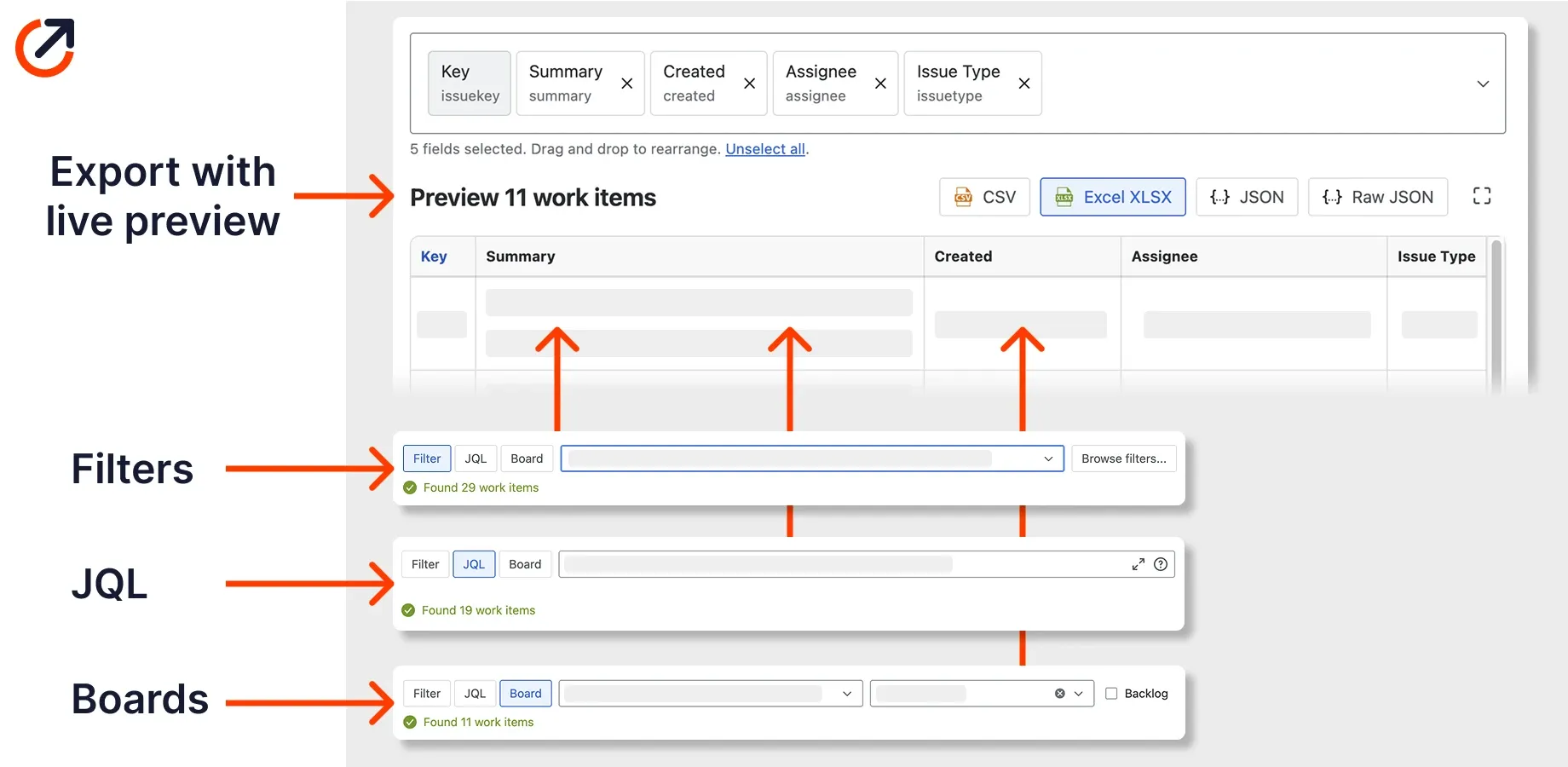
Jira Cloud can include custom fields in its standard search-results CSV. The hard part is choosing the right field set and checking what Jira wrote into the file.
For a quick export, add the custom fields as columns and choose Excel CSV - visible fields. Some Jira screens and documentation call this current fields. For a broad audit, choose all fields. For a shared, repeatable layout, save the search as a filter, configure its columns, and use filter fields.
Export selected Jira custom fields
The screenshots below use edited organisation and user names. Select an image to view it full size.
- Open Jira’s work item search and run the JQL you need.
- Select Configure columns, the columns icon at the right edge of the results table. Some Jira screens label it Columns.
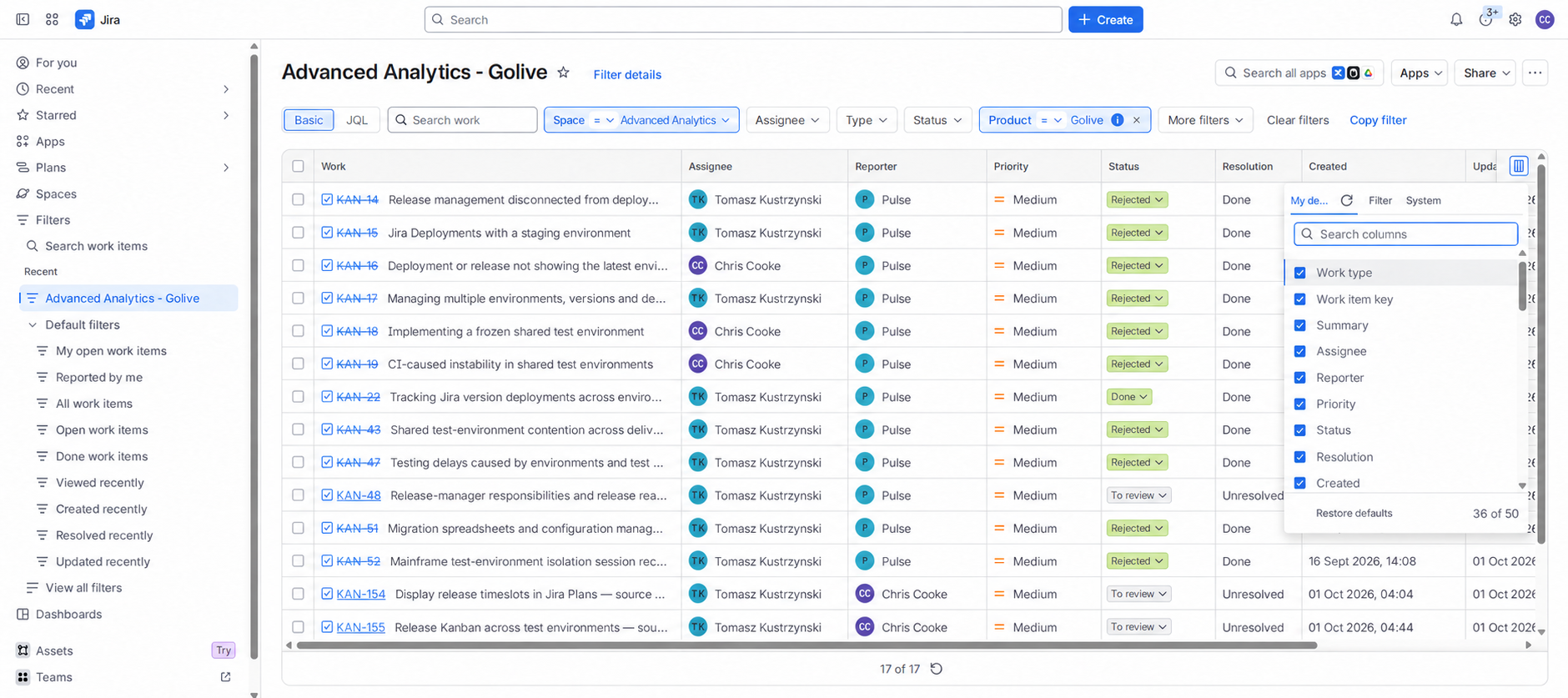
- Search for each custom field by name and add it to the results.
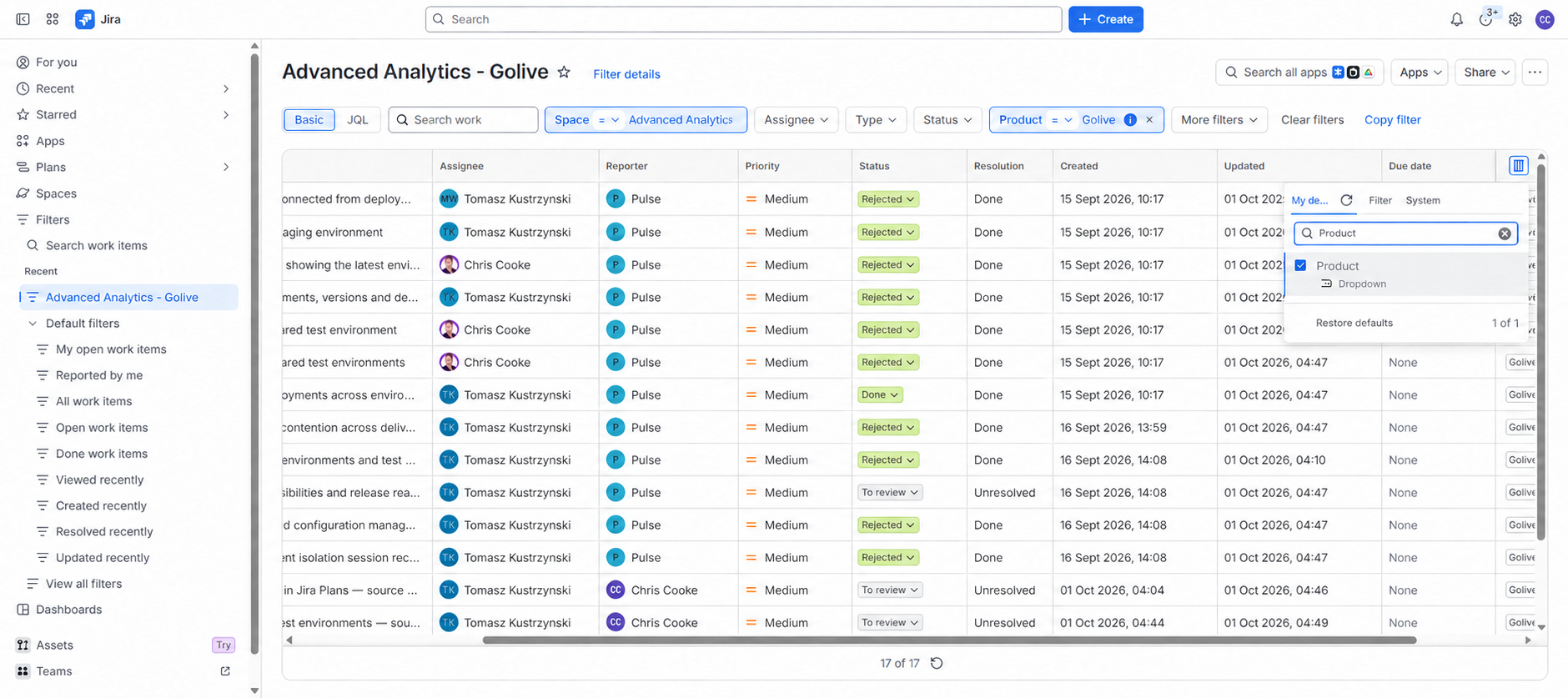
- Put the columns in the order expected by the spreadsheet or receiving system.
- Check a few work items with known values.
- Select More actions, then Export.
- Choose Excel CSV - visible fields (or Export Excel CSV (current fields) if that is the label on your Jira site).
- Open the CSV and compare the exported values with the same work items in Jira.
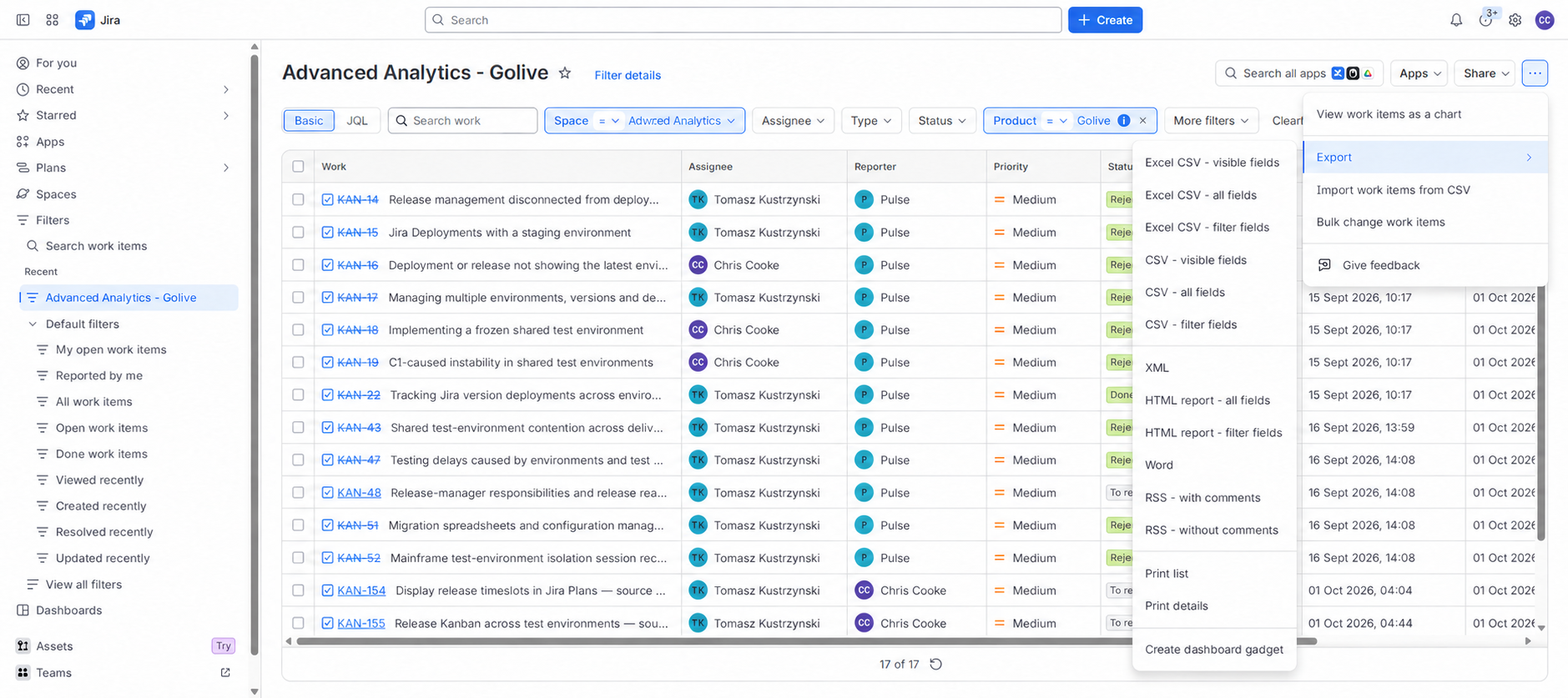
Atlassian’s search-results documentation calls these current, all, and filter fields. The captured Jira menu uses visible fields for the current columns. Its column guide explains personal, filter, and system column configurations.
Jira lets you configure up to 500 fields as search-result columns. Keep the selection focused on what the recipient needs. A 500-column spreadsheet is less a report and more a lost archaeological site.
Choose current fields, all fields, or filter fields
Current fields
Use current fields, labelled visible fields in the screenshots, when you know which columns the recipient needs. It produces a smaller, easier-to-check file and makes missing fields obvious before you export.
All fields
Use all fields when you are discovering what data exists or preparing a one-off mapping exercise. Expect a wide file, especially on an older Jira site with retired or narrowly scoped custom fields.
Field count is not free. In an export app, a wide selection combined with full change history is one of the things that can exhaust browser memory on a large result set, so trimming the field list is usually the first thing to try.
“All fields” does not make hidden data visible. Jira permissions, issue security, and field configuration still decide what your account can see.
Filter fields
Use filter fields when a shared saved filter should own the column choice and order. The saved filter’s layout can override your personal default columns during export, which is useful for a team process and confusing if nobody remembers configuring it.
If the exported columns seem wrong, inspect the filter before rearranging the spreadsheet by hand.
You need permission to edit the saved filter to change its shared column configuration. If the Filter tab is read-only, ask the owner to update it or use Copy filter to create your own version.
Why a custom field is missing
A missing column or blank value usually comes from one of these causes:
- The field is not in the current or saved-filter column set.
- The field is scoped to different projects or work-item types.
- The field is hidden in the applicable field configuration.
- Your account cannot see the work item or field value.
- The field is supplied by an app and does not behave like a standard Jira field.
- The work item has no value for that field.
Start with one work item where you know the field has a value. Open it in Jira, confirm the field is visible, then run a search that returns that item and export only a few columns. A small test file is much easier to diagnose than an all-fields export from three years of work.
Atlassian notes that search columns only show fields that have not been hidden and that the user has permission to see. Project and work-item-type context also matters when a field is available in one part of Jira but absent in another.
Handle multi-value and complex fields carefully
Text, number, date, and single-select fields are usually straightforward. Multi-select, user picker, Assets, rich text, and app-provided fields need a sample export before you rely on them.
Check:
- Whether one work item creates one cell, repeated columns, or a serialized value.
- Whether a user field contains a display name, account identifier, or both.
- Which timezone and date format Jira used.
- How blank, cleared, and unavailable values differ.
- Whether line breaks survive in the receiving tool.
- Whether an app field arrives as readable text or structured data.
Do not build a Power BI model or an import routine from one tidy example. Include work items with no value, one value, several values, and a value containing punctuation or a line break.
Advanced Export’s field documentation describes the warning shown when it does not recognise a custom field. You can still select that field, but a complex value may be exported as plain text or raw JSON. The warning tells you to inspect the output instead of quietly assuming a pretty cell is waiting at the other end.
Keep a stable field map for automation
Display names are for people. Integrations are safer when they also know Jira’s field IDs.
For example, this illustrative field map records a single-select field. It is a template to adapt, not a captured product export:
| Item | Example |
|---|---|
| Jira field ID | customfield_12345 |
| Display name | Customer tier |
| Jira field type | single select |
| Export column | Customer tier |
| Allowed blank state | yes |
| Downstream type | text |
| Owner | CRM operations |
Check the map with a small test set before reusing it. These are illustrative checks, not claims about a particular export format:
| Test work item | Value in Jira | What to verify in the file |
|---|---|---|
DEMO-1 | Customer tier: Gold | Gold appears under the intended column |
DEMO-2 | Customer tier: blank | A blank stays blank, rather than becoming zero or the text null |
DEMO-3 | Regions: Europe and Asia | Both selections survive, in a format the receiving tool can parse |
DEMO-4 | The same field after a rename | The stored field ID still points to the intended field; update the header mapping if it changed |
This matters when administrators rename a field or create another field with a similar name. A spreadsheet formula sees a header. Jira’s API sees a field identifier.
The Jira Cloud issue search API accepts an explicit fields list and can return field data page by page. Use it when code owns the workflow and somebody is prepared to maintain authentication, pagination, type conversion, and errors.
For a project-wide extract, follow the project export steps. For recurring delivery, use the automated export guide.
Check CSV safety before opening the file
Atlassian warns that CSV content can execute as spreadsheet formulas or macros when opened in Excel or uploaded to Google Sheets. Jira fields can contain user-entered text, so treat exported cell values as untrusted input.
For sensitive workflows, apply your organisation’s spreadsheet controls, scan values that begin with formula characters, and avoid forwarding an unchecked file as if Jira had certified it safe.
When native Jira is enough
Use Jira’s current-fields export when you need a one-off CSV and the values look correct in a sample. Use all fields for discovery, then cut the file down to the fields that have an owner and a purpose.
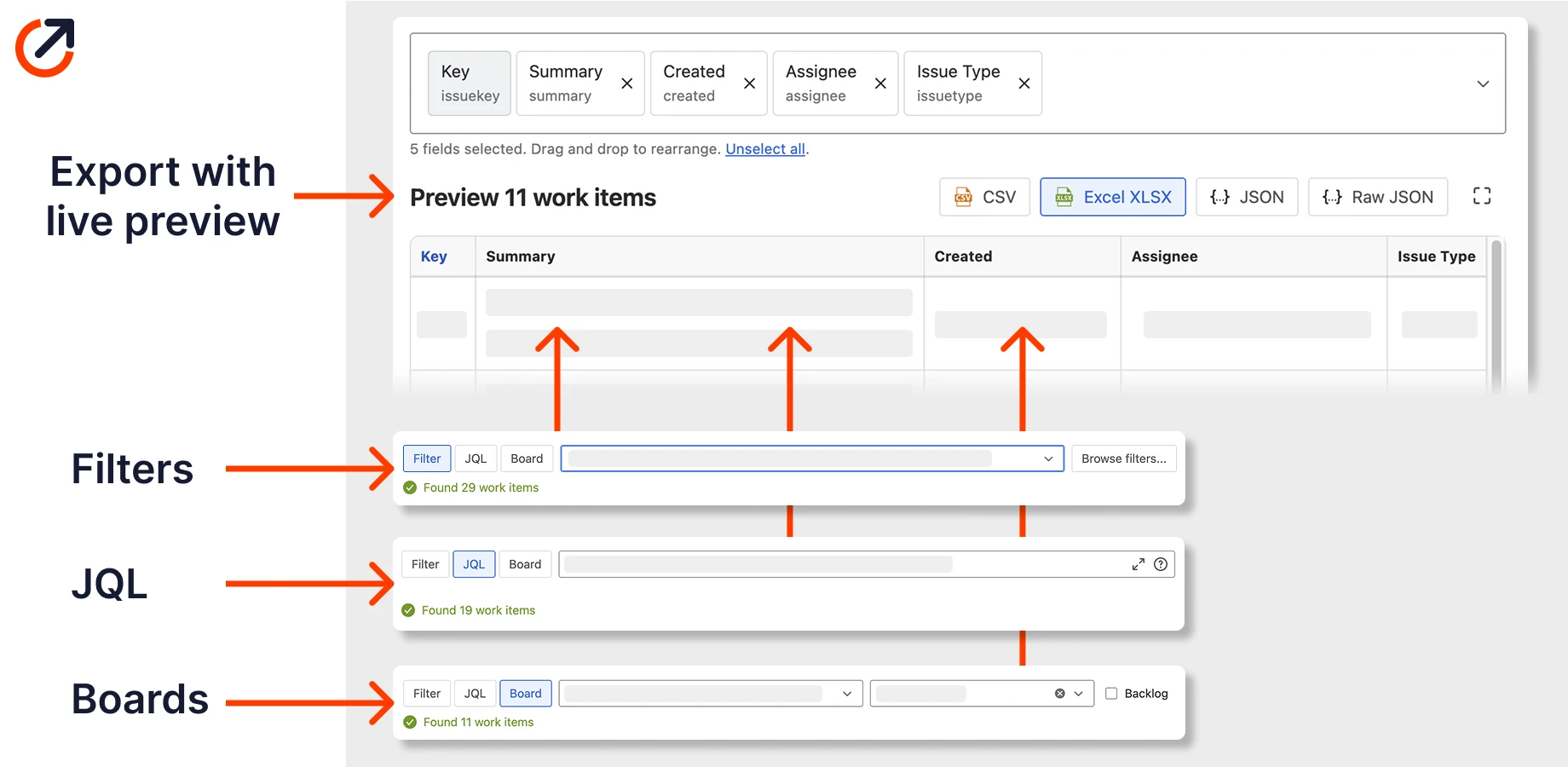
Advanced Export is a better fit when the field selection must be saved and reused, when recipients need XLSX or JSON, when complex fields need a live preview, or when the file needs change history or scheduled delivery.
The product lets you select standard and custom fields from JQL, a filter, a board, or a sprint. Saved configurations keep the choices together. Unknown complex fields may still need downstream parsing, so the preview and a representative test remain part of the job.
Interactive exports support up to 100,000 work items. Large files with many fields and full history can still exhaust browser memory. Reduce the work items, select fewer fields, or use a scheduled background export.
Test the field setup before scheduling it
Start with a small result set containing awkward examples: blanks, multiple selections, renamed fields, and old work-item types. If the preview and output hold up, see the full Advanced Export workflow and decide whether to run it in the browser or schedule delivery.
Frequently asked questions
- Can Jira export custom fields to CSV?
- Yes. Jira Cloud's search export can include custom fields. Use visible fields (also called current fields) for the columns shown in the search, all fields for a broad extract, or filter fields for a saved filter's column configuration.
- Why is a Jira custom field missing from the export?
- The field may not be in the current or filter column set, may not apply to the work-item types in the search, may be hidden by field configuration, or may not be visible to your account. Test the same work item in Jira before assuming the export dropped data.
- Does Jira export custom field IDs?
- A normal CSV is designed for people and usually presents field names. For a durable integration, keep a separate mapping to Jira field IDs and use the REST API or an export tool that exposes the schema you need.
- What happens to multi-select custom fields in CSV?
- Multi-value and app-provided fields do not all serialize the same way. Test representative values before building formulas or imports, and decide whether the downstream system needs a joined value, repeated values, or normalized rows.
Recommended app
Advanced Export for Jira
Put this guide into practice with Advanced Export, built by Advanced Insights and available on the Atlassian Marketplace.
Keep reading
How to Automate Jira Exports to Excel or CSV
Automate Jira exports to Excel or CSV by choosing the right method for file generation, delivery, workbook refresh, permissions, and failures.
ExportHow to Export All Jira Issues in a Project
Export all Jira issues in one project to Excel or CSV. Choose current, all, or filter fields, handle 10,000+ issues, and avoid mistaking an export for a backup.