Your AI Jira Report Can Be Wrong. Here Is How to Check It
Rovo and MCP answers over Jira data can silently skip work items and change between runs. Use this checklist to verify any AI-produced Jira number.
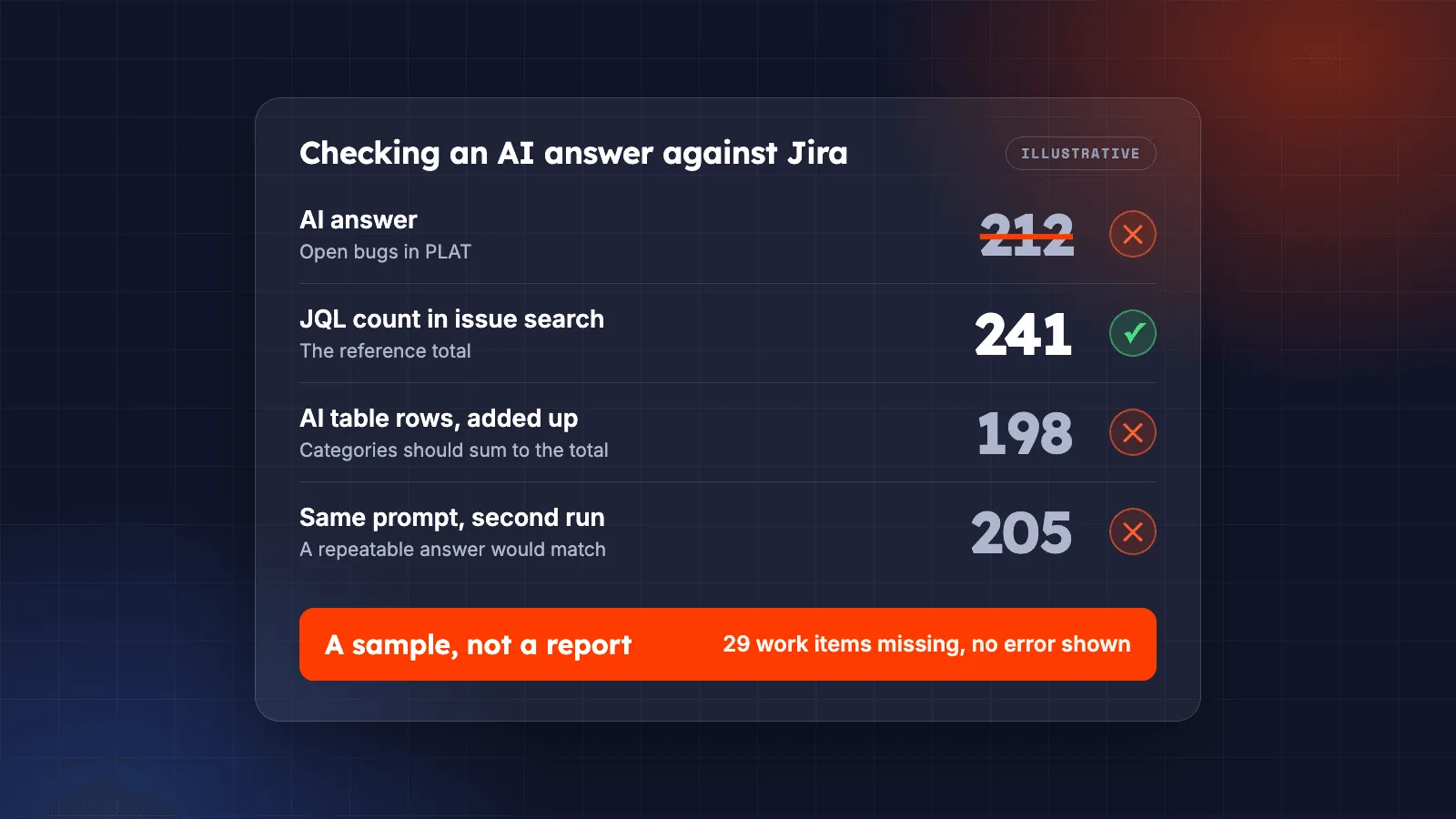
An AI answer about Jira data rarely looks wrong. It arrives as a tidy table with categories, counts, and a confident summary. The problem is what you cannot see: the agent may have read only part of the result set, and it may read a different part next time.
This is now a common question on Atlassian Community. Teams ask Rovo, or Claude and ChatGPT through the Atlassian Rovo MCP server, to categorize a backlog, total a sprint, or report hours for a month. On anything beyond a few dozen work items, the answer can be incomplete without any error, and it can change between runs.
None of this makes AI useless for Jira reporting. It means an AI-produced number needs the same check you would give a spreadsheet from a colleague: where did the data come from, is all of it there, and does it add up?
If you have two minutes, do this before sharing an AI-produced number:
- Ask the agent for the exact JQL it used, run it in Jira issue search, and note the total.
- Add up the rows of the agent’s table yourself and compare the sum with that total.
- Open two or three of the work items behind the biggest number and check them.
If any of these disagree, the answer is a sample, not a report.
What goes wrong in practice
Four recent Community threads show the pattern.
- Analysis stops at a sample. One team asked Rovo to categorize about 600 service requests from a JQL filter. However the prompt was worded, the analysis stopped at about 40. A helper who reproduced it could get further with batching and validation rules, but still ended up 40 to 60 work items short of the full count.
- Different results on every run. A team evaluating Rovo on a backlog of about 1,000 work items saw the agent retrieve every match, then analyze only some of them. The output table was cut off with an ellipsis, and running the same prompt against unchanged data produced a different set of work items each time.
- Two counts in one answer. A sprint-analysis agent reported five user stories in one part of a response and six in another, and gave a story point estimate that did not match the sprint board.
- Silent truncation in the MCP server. A team building a monthly hours report through the Rovo MCP server found that reading a work item returned only its oldest 20 worklogs, with no way to page through the rest. Their monthly totals came out about 21% under the true figure, and some work items showed zero hours for a month in which time had been logged. Nothing reported an error.
The same thread described a second silent limit: the MCP search tool was returning only five work items per page with a broken pagination cursor. Atlassian fixed that in August 2026 (JRACLOUD-99221). That fix is good news, and it is also the lesson. Tool limits change without notice, in both directions, so a report that was complete last month is not proof that it is complete today. Everything in this section describes the tools as of October 2026.
Sources: analysis in small batches, inconsistent results on large backlogs, wrong count of work items, and the oldest 20 worklogs.
Why AI answers over Jira data are incomplete
The model reasons over what fits, not over the result set
An agent can run a JQL search that matches 1,000 work items. That does not mean all 1,000 reach the language model. Every model has a context window, and every agent run has a time and token budget. When the data is larger than either, something is left out.
Atlassian does not document how many work items Rovo passes to the model for analysis. Community estimates vary and are disputed, which is itself a reason not to rely on one. What matters is that the cut is not announced. The table looks complete because the model writes it as if it were.
Tool responses are truncated, and truncation is quiet
An agent reads Jira through tools: a search, a work item read, a worklog read. Each tool decides how much to return. The MCP server’s worklog read returned 20 entries while reporting the true total elsewhere in the response. A model summing the entries it received has no reason to notice the gap unless it compares the two.
Truncation is reasonable engineering. Silent truncation, followed by arithmetic on the visible part, produces a number that looks clean and is wrong.
The history is not in what the agent reads
Many reporting questions are about change, not current state:
- How long did work spend in review?
- How many bugs were reopened last quarter?
- What was added to the sprint after it started?
- Who changed the priority, and when?
Those answers live in each work item’s changelog, the History tab in Jira. Rovo cannot read it today. Atlassian’s suggestion ROVO-329 asks for that access and is still gathering interest. Through the MCP server, an agent can request one work item’s changelog at a time, which is workable for five work items and impractical for five hundred.
An agent asked a history question without history will often answer anyway, from current fields, comments, or inference. Treat any time-in-status or reopen figure from a general-purpose assistant as unverified until you know it read the changelog.
A count in the text is generated, not computed
When a model writes “37 bugs”, the number is generated text unless a tool did the counting. That is how one answer can contain two different story counts, and why the same prompt can give a different figure on the next run.
The agent sees what the person asking can see
An agent reads Jira with the permissions of the person using it. Project permissions and issue security levels decide which work items it can find. Two people asking the same question about the same JQL can both get a correct answer, and different numbers. Check a figure as the person who will present it, and say whose view it is.
Check any AI-produced Jira number
Use this list before an AI-produced figure goes into a status report, a stakeholder update, or a decision. Every check is something you do yourself, because an agent’s account of its own work is generated text too.
| Check | How | What a failure looks like |
|---|---|---|
| Get the total from Jira | Ask the agent for the exact JQL it used. Run it in issue search yourself and note the count. | The agent cannot give the JQL, or its total differs from search. |
| Add the rows up yourself | Sum the agent’s table and compare it with the search count. A TOTAL row the agent writes is not a check. | The rows sum to less than the filter total. |
| Read the tool output | If your assistant shows its tool calls, open them. Count the keys returned and look for a total larger than what came back. | The tool returned fewer work items than the search matched. |
| Spot-check work items | Ask for the keys behind two or three groups. Open several and confirm the value or category. | A key is in the wrong group, or is not in the filter at all. |
| Compare with a number you trust | Put the AI figure next to last period’s Jira report, spreadsheet, or BI figure for the same definition. | The difference is larger than real change explains. |
| Run it twice | Repeat the same prompt in a fresh chat against the same filter. | The totals or the keys differ. Agreement does not prove completeness: two runs can share a gap. |
| Check whose view it is | Run the JQL as the person who will present the number. | Different people get different totals. |
| Check history questions | For time, reopen, or change questions, open one work item’s History tab and compare. | The agent’s figure cannot be reconciled with the transitions shown. |
| Check sums against Jira | For story points, compare with the Sprint Report. For a month’s hours, open a few work items’ Work log and add up that month’s entries. | The agent’s sum is lower than Jira’s own figures. |
Four of these deserve more detail.
Start from a JQL count you ran yourself
The issue search total is the denominator for everything else. Save the JQL as a filter, so the same definition can be reused next week and by the next person. If the agent’s question cannot be expressed in JQL, that is worth knowing too: it means the agent is filtering by its own judgment, and you should see the keys it chose.
JQL can answer some history questions directly. For example, this returns work items moved from Done back to In Progress in the last 90 days:
project = ABC AND status CHANGED FROM "Done" TO "In Progress" AFTER -90dThree details matter:
- It matches status names. If your workflows have several done statuses, such as Closed or Resolved, add an
ORclause for each pair. - Naming the target status keeps a move from Done to Closed from counting as a reopen.
- It counts work items, not reopen events. A work item reopened three times appears once.
That is a deterministic number you can put next to the AI’s answer.
Use the Sprint Report as the reference for sprint numbers
Sprint counts are where AI answers and the board most often disagree, and not always because of the AI. Common reasons:
sprint = "PLAT Sprint 42"also matches work items that were carried over to a later sprint, because Jira keeps the closed sprint in their Sprint field.- The Sprint Report counts work as completed when it is in the board’s last column at sprint close. That can differ from the Done status category.
- Work added after the sprint started is part of the sprint but not of its original commitment. The Sprint Report marks it.
- Sub-task estimates are not part of the sprint’s story points.
- The board shows only what matches its own filter.
Open the board’s Sprint Report and use it as the reference. If the agent’s count differs, ask which of these rules it applied.
Read the tool output, not the agent’s account of it
Most MCP clients, Claude among them, can show each tool call and its raw response. That is the evidence. An agent’s answer to “how many work items did you read?” is useful as a prompt to look, but it is generated text and can be as wrong as the report.
In the raw output, look for a total field that is larger than the number of work items returned, a missing next-page cursor, and fields you asked for that came back empty. An honest “I analyzed a sample of 40” is still useful. It tells you the figure is a sample.
Spot-check the awkward work items
Pick work items that are likely to break a lazy calculation: one with a long description, one moved between spaces, one reopened, one changed yesterday. If the agent handles those correctly, the simple ones are less of a worry. If the agent cannot list the keys behind a number, treat the number as an estimate.
Definitions decide the number
Many disagreements between an AI answer and an existing report are not AI errors. They are two definitions of the same metric:
- Where cycle time starts: creation, the first move to In Progress, or a commitment column.
- Whether work still in a status counts, and up to when.
- Whether an automation passing through a status in the same second counts as a visit.
- Whether a renamed status groups under its old or new name.
- Which time zone defines a day or a week.
A chat answer rarely states these choices. A query does, because the rules are written in it. The time-in-status guide walks through them for one common metric.
The fix: compute first, let the AI explain
The reliable pattern separates two jobs:
- Compute the numbers deterministically over the complete data. The same input must give the same output on every run.
- Ask the AI to explain the result: summarize the pattern, draft the narrative, suggest what to investigate.
For the computation, use the simplest tool that sees all the data:
- JQL and Jira’s own reports for counts, current state, sprint figures, and supported history conditions such as
CHANGED. - A complete export into a spreadsheet or BI tool. Check that the number of unique keys in the file matches the search total. The guides to exporting all Jira issues in a project and exporting more than 10,000 issues cover the limits.
- The Jira REST API with pagination when engineering owns the pipeline and can test that every page arrived.
- SQL over a complete copy of the data, when the question needs joins, percentiles, or change history. You do not need to write it yourself: an agent can draft the query, and you check the query and its totals rather than every row.
Then give the computed table to the AI. A model is good at noticing that one status dominates cycle time, or turning a table into a paragraph a stakeholder will read. It is not a reliable counter of 600 work items.
When the categories are in free text
The first Community example, categorizing service requests from their summaries and descriptions, looks like a job only AI can do. The categories do not exist as a field until something reads the text. It still splits into the same two jobs:
- Let the AI propose the rules. Give it a sample of 50 to 100 requests and ask for categories, each with the keywords that identify it. Edit the list until it matches how your team talks about the work.
- Apply the rules to every request. Check the keywords in order, first match wins, and put anything unmatched in Other. A spreadsheet lookup formula does this on an export; so does a SQL
CASEexpression. - Check the result. The category counts plus Other must equal the JQL total. A large Other bucket tells you which rules to add.
- Let the AI explain the counts, and suggest rules for what landed in Other.
JQL alone can approximate this with one summary ~ "keyword" filter per category, but its text search matches word forms loosely and a request can fall into several categories. That is fine for a rough check and not for a total that must add up.
Before a number goes to leadership
When someone asks where a number came from, the answer should be a query, not a chat transcript. Keep these with the report:
- The JQL or SQL, unchanged.
- When it ran, and the time zone.
- Whose permissions it ran with.
- The result file or table that was shared.
- Any limit the tools reported.
If you connect a third-party assistant such as Claude or ChatGPT to Jira, the work item data it reads is sent to that assistant’s provider under your agreement with them. Check that this is allowed for the spaces involved before the first report, not after.
Worklog totals are their own problem. Whatever produced them, add up a few work items’ entries for the period in Jira before using a monthly hours figure.
How Advanced Export applies this pattern
Advanced Export’s datasets and SQL exports are in beta. They follow the compute-first pattern:
- Complete data. Instead of passing work items to the model, the agent builds a dataset: every work item matching your JQL or export, up to 20,000, with their full change history. If a limit is reached, the dataset says so and the agent tells you.
- The same answer twice. The agent answers with a database query, not by reading rows, so asking again gives the same number. You can ask to see the SQL it ran.
- SQL you can see and edit. In the app, add a SQL step to an export, start from a starter query such as time in status, cycle time, or throughput, and choose Run on sample to see the result as you edit. The sample is up to 1,000 work items and is for checking the query, not for reporting. A full run reads all the data, up to 20,000 work items, and you can download the sample as a DuckDB file to reconcile in your own tools. Comments are not included in the data.
- A repeatable report. Ask the Rovo agent to turn a checked query into a weekly or monthly report, as CSV, Excel or JSON, by email, download link, an SFTP server you have already set up, or the Advanced Export API. Each run executes the saved SQL on fresh data, so next Monday’s number does not depend on the model. Rovo asks you to confirm every change, emails go only to people on your Jira site unless an admin allows otherwise, and every change the agent makes is recorded. The agent cannot set up webhooks; you can add one in the dashboard.
- Your choice of assistant. Claude, Claude Code, or another assistant that can add a remote MCP server with OAuth sign-in can use the same tools. This uses an Atlassian feature in early access, and a site admin has to turn the tools on.
For example, this query counts each time work moved from a done status back to an open one, across every done status in the workflow:
SELECT issue_key, count(*) AS times_reopened
FROM (
  SELECT issue_key, category_key,
         lag(category_key) OVER (PARTITION BY issue_id ORDER BY started_at) AS previous
  FROM status_intervals
)
WHERE previous = 'done' AND category_key <> 'done'
GROUP BY issue_key ORDER BY times_reopened DESC
Unlike the JQL above, it counts reopen events, not just reopened work items.
The explanation is still written by a language model, so check the SQL and the totals with the same list. Datasets are temporary: one is deleted after 4 hours by default, and after 24 hours at most. For an audit trail, keep the saved SQL export and its delivered files.
The documentation covers SQL exports, the Rovo agent, and connecting other AI assistants. See Advanced Export for Jira for exports and schedules.
Check one AI answer this week
Take the last AI-produced Jira number you shared. Run its JQL, add up the rows, and compare it with a number you already trust. If they agree, keep using it. If they do not, compute the number first and let the AI explain it. See how Advanced Export turns a checked query into a scheduled report.
Frequently asked questions
- Why does Rovo give different answers to the same Jira question?
- Language models are not deterministic, and on a large result set an agent may reason over a different subset of work items on each run. If the same prompt against unchanged data gives a different total, treat every answer as an estimate and check it against a JQL count.
- How many Jira work items can Rovo analyze at once?
- Atlassian does not publish a single number. Community reports describe analysis stopping at a few dozen work items out of several hundred, with no error. Compare the agent's total with the issue search total for the same JQL before trusting it.
- Can Rovo read the history of a Jira work item?
- Not the History tab, as of October 2026. Atlassian's suggestion ROVO-329 asks for it and is still gathering interest. Questions about time in status, reopened work, or what changed after a sprint started need the changelog, so check that the agent actually read it.
- Do the same problems apply to Claude or ChatGPT?
- Yes. Claude, ChatGPT and other assistants read Jira through tools such as the Atlassian Rovo MCP server, so they are bound by the same tool limits and the same context windows. The same checks apply whichever assistant produced the number.
- How do I check an AI-generated Jira report?
- Ask the agent for the JQL it used and run it in issue search yourself. Add up the report's rows and compare them with the search total, read the raw tool output if your assistant shows it, spot-check a few work items, and compare the result with a number you already trust.
Recommended app
Advanced Export for Jira
Put this guide into practice with Advanced Export, built by Advanced Insights and available on the Atlassian Marketplace.
Keep reading
How to Audit Jira Custom Fields Across Projects
Find which Jira custom fields are used, in which projects, and which to clean up, with the admin Fields page, Site Optimizer, the REST API, JQL or SQL.
ReportingHow to Build a Jira Time-in-Status Report
Build a Jira time-in-status report, choose the right calculation rules, handle reopened and current work, and avoid turning flow data into a staff scorecard.