How to Audit Jira Custom Fields Across Projects
Find which Jira custom fields are used, in which projects, and which to clean up, with the admin Fields page, Site Optimizer, the REST API, JQL or SQL.
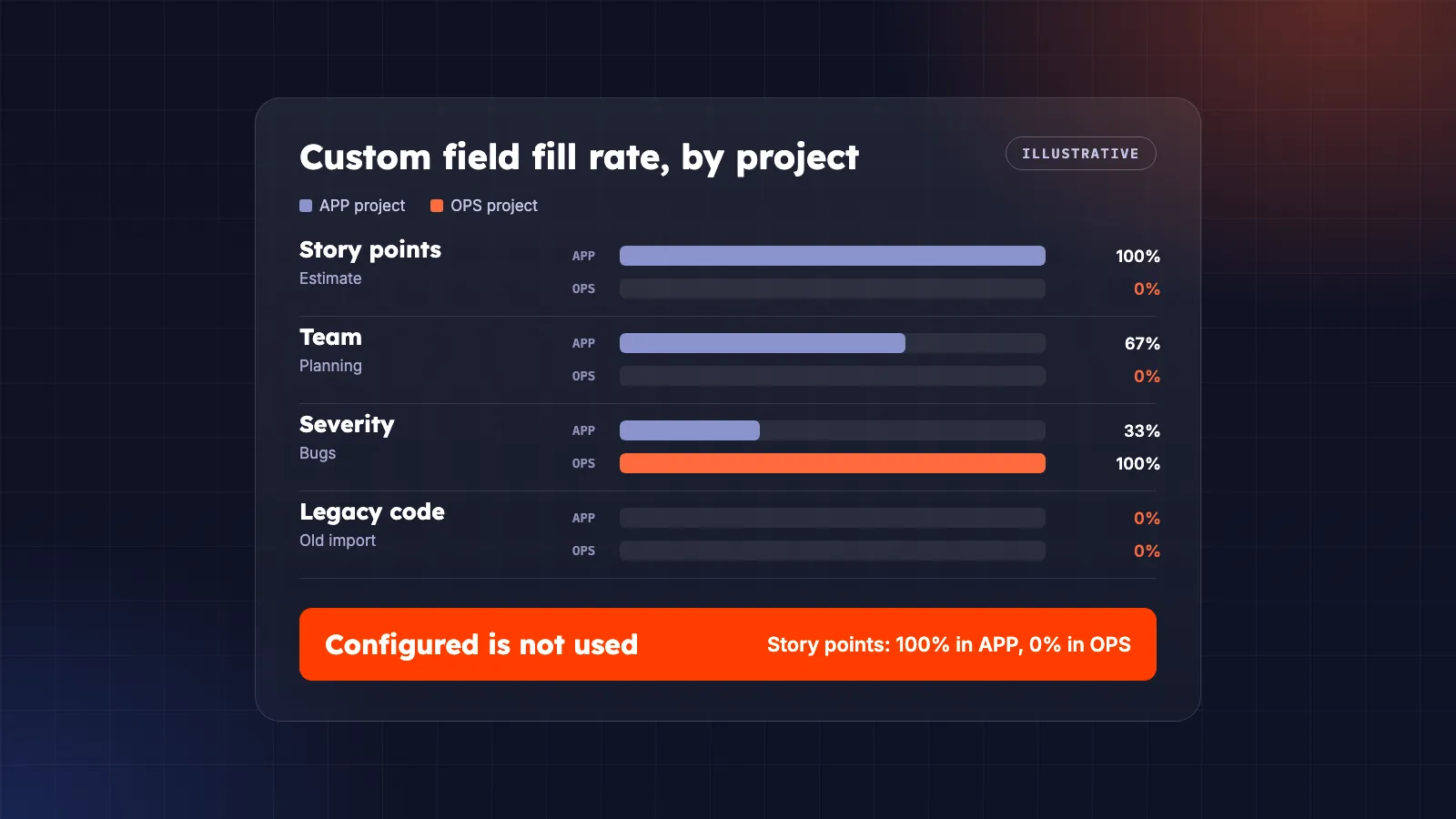
A Jira site collects custom fields faster than anyone removes them. One team asks for a field, it gets a global context so it is “available everywhere”, and five years later the field list runs to hundreds of entries that nobody can vouch for. Every one of them shows up in field pickers, JQL autocomplete and screen configuration, and Atlassian limits how many fields a single project can have.
An audit answers three questions:
- Which custom fields are used at all?
- Which projects have which fields? That is the project-to-project comparison you need before you standardise.
- Which fields can go, from the whole site or from one project?
Jira gives you parts of the answer in four places, each with its own blind spots. This guide walks through them, then shows how to get all three answers in one report.
What “used” means for a custom field
“Used” means four different things, and each tool measures only some of them. Decide which ones your audit needs first.
| Question | What it tells you | Where to find it |
|---|---|---|
| Is the field configured for a project? | A context covers the project, so the field can hold values there | Field contexts, field/search?projectIds= |
| Is it on a screen? | People see it when they create, edit or view a work item | Screens, screen schemes, createmeta |
| Was it changed recently? | Someone set a value somewhere on the site | Date last used |
| Is it filled in? | How many work items, in which projects, have a value | JQL counts, SQL |
A field can be configured, on every screen and recently used in one project, while it is empty in twenty others. The last row is the one most audits skip, and it is the one that tells you whether a project needs the field.
Option 1: the Fields page in Jira admin
Go to Settings > Work items > Fields. The page lists every active field, with a Deleted fields tab beside it. By default it shows each field’s name, type, description and Date last used. Columns adds Contexts, Screens, Spaces (Jira’s new name for projects), Can be used in and Field ID.
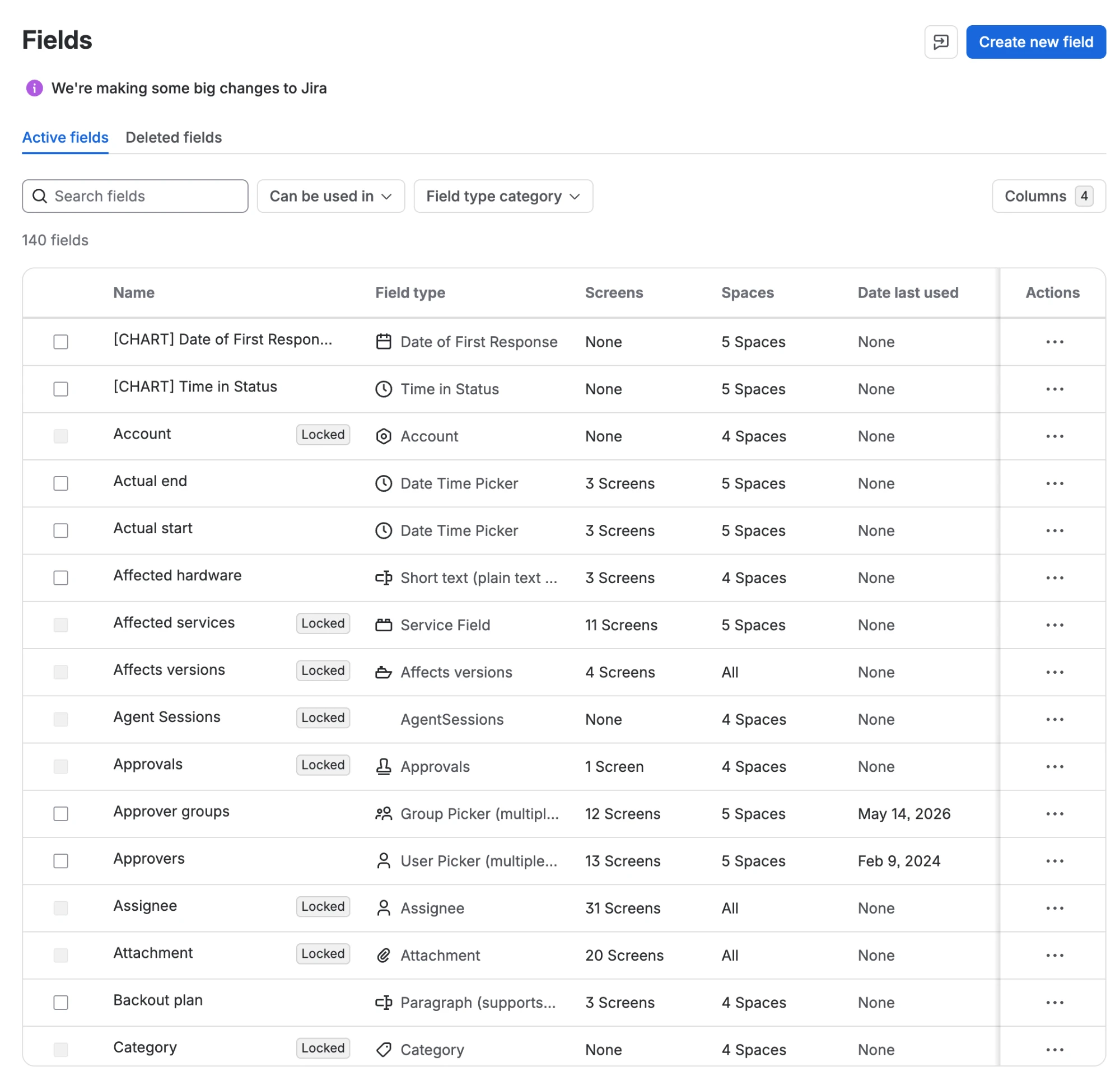
Sort by Date last used to find fields nobody has touched for a long time, and add Screens to spot fields that sit on no screen at all. Both are good first candidates.
The limits:
- No per-project view. The Can be used in filter offers only all spaces or team-managed spaces only. You see how many projects a field applies to, not which ones, and not which fields one project has.
- Last used is site-wide. A field filled in once last week in one project looks as active as a field filled in thousands of times.
- No export. To compare or share the list, you copy it out by hand.
Option 2: Site Optimizer (Premium and Enterprise)
On Premium and Enterprise plans, Settings > System > Site optimizer reviews field limits and flags custom fields that are not used in any spaces, contexts or screens, with each field’s last-used date. It also shows which projects are close to the limit on fields per project, and it can suggest a leaner field scheme for one of them.
It is the quickest route to “what can we delete”, if your plan includes it. It does not count values per project, so it cannot tell you that a project has a field but never fills it. Its idea of “used” also leaves things out: a field that only appears in a filter, a board or an automation rule can look unused.
Option 3: the REST API
The API has everything the Fields page shows, in a form you can script and put in a spreadsheet.
Every custom field, with its usage counts:
GET /rest/api/3/field/search?type=custom&expand=lastUsed,screensCount,contextsCount,projectsCount&maxResults=50Each field comes back with screensCount, contextsCount, projectsCount and lastUsed. lastUsed has a type: TRACKED with a date, or NOT_TRACKED for fields Jira does not track, which includes many app fields. Results come 50 at a time, so follow startAt until isLast is true.
The custom fields one project has:
GET /rest/api/3/field/search?type=custom&projectIds=10001&maxResults=50The same endpoint accepts projectIds and returns the fields that apply to that project: global fields, fields whose context includes the project, and a team-managed project’s own fields. It takes one project per request (“Only one project can be queried at a time”), so loop over your projects. That is far fewer calls than the alternative, which is reading the project mappings of each field’s contexts with GET /rest/api/3/field/{fieldId}/context/projectmapping.
What is on a project’s create screen:
GET /rest/api/3/issue/createmeta/{projectIdOrKey}/issuetypes/{issueTypeId}This returns the fields a user sees when creating that work type in that project, after the screen scheme and the work type screen scheme are applied. It costs one call for each project and work type, so save it for the projects you are about to change.
Expect to need the Administer Jira permission for the field endpoints. The API also tells you nothing about values: a field that a project has, on every screen, can still be empty in all of its work items.
Option 4: JQL for whether people fill fields in
To find out whether a field is actually used in a project, count the work items that have a value:
project = APP AND cf[10050] is not EMPTYCompare it with the project’s total (project = APP). For a trend, run it per period:
project = APP AND cf[10050] is not EMPTY AND created >= startOfMonth(-1) AND created < startOfMonth()The Field ID column on the Fields page gives you the number for cf[...]. This is exact, and it needs nothing but search. It just does not scale: ten projects, fifty fields and twelve months come to six thousand searches.
Option 5: all three questions in one SQL report
Advanced Export’s SQL exports load your Jira data into a small database and run a query over it. For a field audit, the data includes two things the other options cannot combine:
- a
fieldstable with every field on the site, with its screens, contexts and projects counts and its last-used date; - a
project_fieldstable with the custom fields each project in the export has.
The work items themselves are there too, one column per field, so the query can count values per project.
Set it up once:
- Create an export of the projects to compare, for example
project in (APP, OPS, MKT) AND created >= -365d. - Add the custom fields you want to audit.
- Choose SQL query under Output, then turn on Include project fields in Settings.
Then a single query answers the comparison question. This one lists, for each project and each custom field it has, how many work items fill it:
WITH filled AS (
    UNPIVOT (SELECT id, project, COLUMNS('^customfield_\d+$')::VARCHAR FROM work_items)
    ON COLUMNS('^customfield_') INTO NAME field_id VALUE value
),
per_project AS (
    SELECT project, count(*) AS work_items FROM work_items GROUP BY project
)
SELECT
    p.key AS project,
    f.name AS field,
    pp.work_items,
    count(fl.id) AS with_value,
    round(100.0 * count(fl.id) / pp.work_items, 1) AS pct_filled
FROM project_fields AS pf
JOIN projects AS p ON p.id = pf.project_id
JOIN fields AS f ON f.id = pf.field_id
JOIN per_project AS pp ON pp.project = pf.project_id
LEFT JOIN filled AS fl ON fl.project = pf.project_id AND fl.field_id = pf.field_id AND fl.value NOT IN ('', '[]')
GROUP BY p.key, f.name, pp.work_items
ORDER BY project, pct_filled DESC, field| project | field | work_items | with_value | pct_filled |
|---|---|---|---|---|
| APP | Story points | 412 | 412 | 100 |
| APP | Team | 412 | 275 | 66.7 |
| APP | Severity | 412 | 137 | 33.3 |
| APP | Legacy code | 412 | 0 | 0 |
| OPS | Severity | 180 | 180 | 100 |
| OPS | Story points | 180 | 0 | 0 |
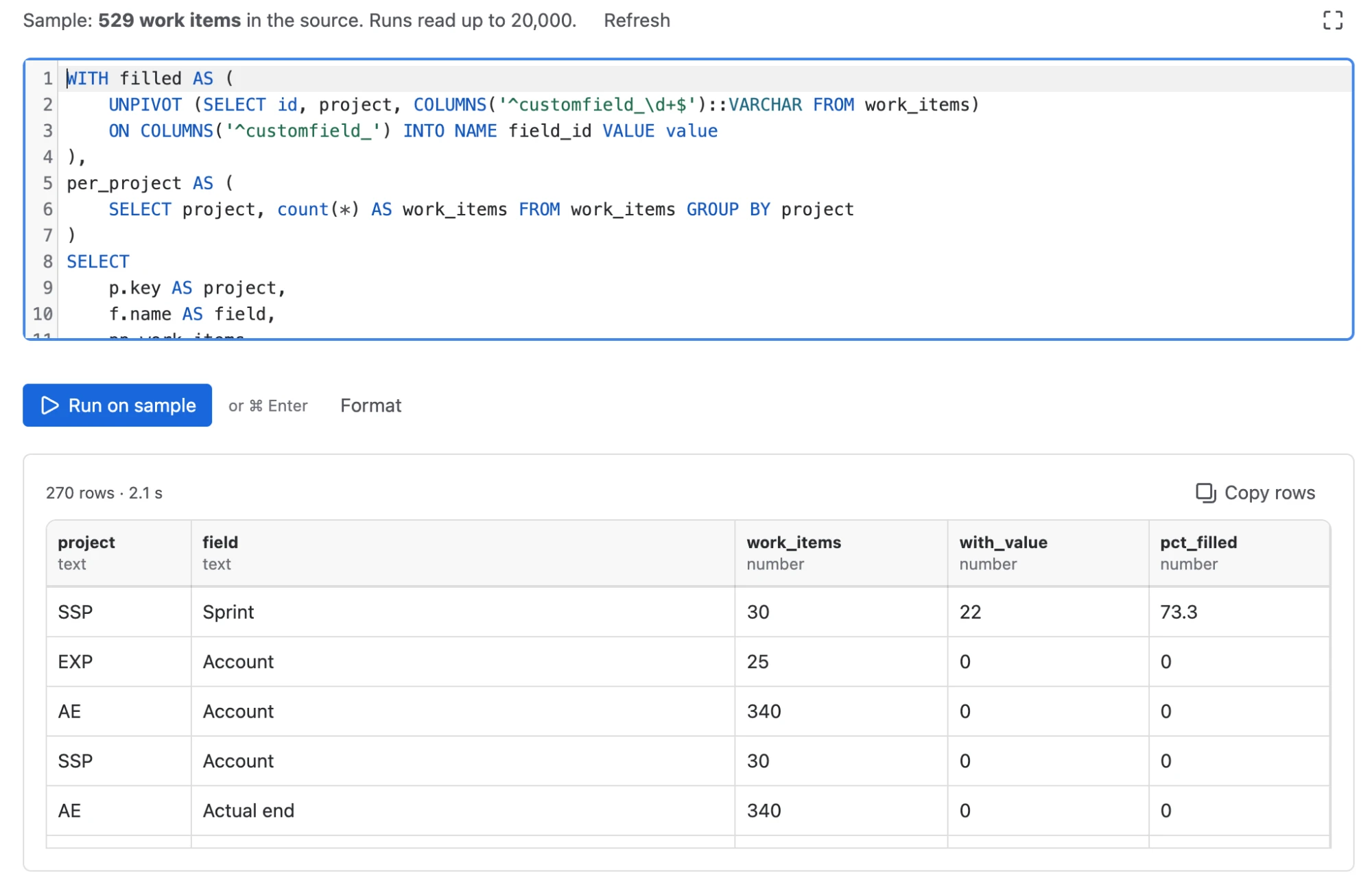
The rows at 0% are the cleanup list for each project: fields that project has and never uses. Here Story points is in use in APP and dead weight in OPS, which a site-wide last-used date would never show.
The documentation has six ready-made queries, each with an example result:
- the field inventory with cleanup hints;
- a project-by-field matrix;
- fields shared across projects;
- the fill rate above;
- fields a project never uses;
- a month-by-month trend.
Schedule the fill rate and trend queries monthly and you get a running record of field use, delivered as Excel, with no rebuilding by hand. You can also ask the Rovo agent for the report in plain words.
Before you delete a field
Cleanup is where audits cause damage. Work through these first:
- Prefer narrowing to deleting. If a field is used in two projects and dead in twenty, change its context to those two projects. The data stays, and the other projects stop seeing the field.
- Check what refers to it. Saved filters, board quick filters, dashboards, automation rules and workflow conditions can use a field without ever setting a value. Search your filters for
cf[10050]and the field’s name before you remove it. - Mind locked and app fields. Jira and apps manage locked fields, and many app fields are
NOT_TRACKED, so a missing last-used date proves nothing. - Know what deleting does at once. Jira tags a deleted field for deletion in 60 days, but removes it straight away from screens, automation rules, advanced workflow functions and apps that use it. Restoring it from Deleted fields within the 60 days puts it back, with its data. Export the values first if anyone might need them after that.
Feature requests to watch
Atlassian is collecting interest in native versions of this report: JRACLOUD-95504 (export field utilization at the project level) and JRACLOUD-92944 (a REST endpoint for custom field usage across projects). Vote for them if you want this in Jira itself.
Which option to use
- A quick look for obviously dead fields: the Fields page, sorted by Date last used, with the Screens column on.
- Bulk cleanup on Premium or Enterprise: Site Optimizer.
- A one-off project comparison you can script: the REST API, with
field/search?projectIds=per project. - Whether one project uses one field: a JQL count.
- The full picture, repeatable: what each project has, what it fills in and how that changes over time, from a SQL export in Advanced Export. See also how to export Jira custom fields for the field values themselves.
Frequently asked questions
- How do I find unused custom fields in Jira Cloud?
- Start with Settings > Work items > Fields and sort by Date last used. Fields with no recent date, and fields on no screens, are the first candidates. On Premium and Enterprise, Site Optimizer also lists custom fields not used in any spaces, contexts or screens. Before deleting one, check that no filter, board, dashboard or automation rule uses it, because those references do not count as use.
- Can I see which custom fields each Jira project uses?
- Not on the admin Fields page: its Can be used in filter only separates all spaces from team-managed spaces. The REST endpoint GET /rest/api/3/field/search accepts a projectIds parameter and returns the custom fields one project has, one project per request. Advanced Export's SQL exports turn the same data into a project-by-field matrix.
- Does a custom field on a screen mean people use it?
- No. A field can be configured for a project and placed on its screens while nobody fills it in. Measure use by counting the work items that have a value, with JQL such as cf[10050] is not EMPTY, per project and per period.
- What happens when I delete a custom field in Jira Cloud?
- Jira tags it for deletion in 60 days and removes it at once from screens, automation rules, advanced workflow functions and apps that use it. Until then an admin can restore it from the Deleted fields tab, which puts it back where it was used, with its data. Narrowing the field's context instead keeps it working in the projects that need it.
Recommended app
Advanced Export for Jira
Put this guide into practice with Advanced Export, built by Advanced Insights and available on the Atlassian Marketplace.
Keep reading
Your AI Jira Report Can Be Wrong. Here Is How to Check It
Rovo and MCP answers over Jira data can silently skip work items and change between runs. Use this checklist to verify any AI-produced Jira number.
ReportingHow to Build a Jira Time-in-Status Report
Build a Jira time-in-status report, choose the right calculation rules, handle reopened and current work, and avoid turning flow data into a staff scorecard.